> ## Documentation Index
> Fetch the complete documentation index at: https://docs.membit.ai/llms.txt
> Use this file to discover all available pages before exploring further.
# n8n
> Integrate real-time context to your n8n AI workflows via Membit MCP.
 n8n is a powerful workflow automation tool that allows you to connect different services and build sophisticated automation. By integrating Membit with n8n, you can enhance your AI agents with real-time social context, enabling them to provide up-to-date insights about trending topics, news, and conversations happening across the web.
## Prerequisites
Before you begin, make sure you have:
* An active n8n instance (cloud or self-hosted)
* A Membit account with an API key [get your API key](/access-and-auth)
* Basic familiarity with n8n workflows and AI agents
## Setting Up Membit MCP Client
Follow these steps to integrate Membit with your n8n workflows:
In your n8n workflow editor, open the node panel to add a new node to your workflow.
n8n is a powerful workflow automation tool that allows you to connect different services and build sophisticated automation. By integrating Membit with n8n, you can enhance your AI agents with real-time social context, enabling them to provide up-to-date insights about trending topics, news, and conversations happening across the web.
## Prerequisites
Before you begin, make sure you have:
* An active n8n instance (cloud or self-hosted)
* A Membit account with an API key [get your API key](/access-and-auth)
* Basic familiarity with n8n workflows and AI agents
## Setting Up Membit MCP Client
Follow these steps to integrate Membit with your n8n workflows:
In your n8n workflow editor, open the node panel to add a new node to your workflow.
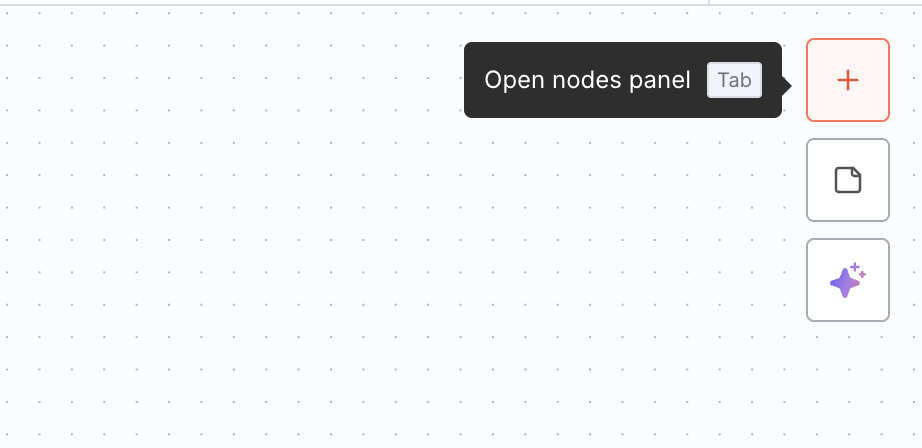 In the node search bar, type "MCP client" to find the Model Context Protocol client tool.
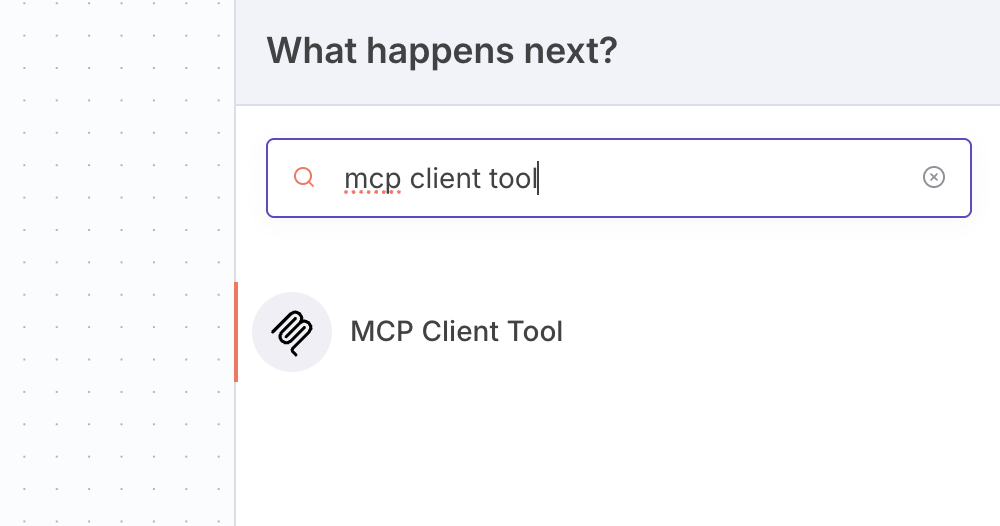 The MCP Client Tool should appear in the search results. This tool enables n8n to communicate with external MCP servers like Membit.
Add the MCP Client Tool to your workflow and configure it with the following settings:
```
Endpoint: https://mcp.membit.ai/mcp
Server Transport: HTTP Streamable
Authentication: Header Auth
- Name: X-Membit-Api-Key
- Value:
Tools to Include: All
```
Replace `` with your actual Membit API key.
## Building Your First Workflow
Now that your Membit MCP client is configured, let's create a complete workflow that uses real-time context:
Create a complete workflow by adding and connecting the following nodes:
1. **Chat Trigger** - To receive user input
2. **AI Agent** - To process requests and coordinate responses
3. **Google Gemini Chat Model** - For natural language processing
4. **Membit MCP Client** - For real-time context
Connect them in this order:
* Chat Trigger → AI Agent
* Google Gemini Chat Model → AI Agent
* Membit MCP Client → AI Agent
The MCP Client Tool should appear in the search results. This tool enables n8n to communicate with external MCP servers like Membit.
Add the MCP Client Tool to your workflow and configure it with the following settings:
```
Endpoint: https://mcp.membit.ai/mcp
Server Transport: HTTP Streamable
Authentication: Header Auth
- Name: X-Membit-Api-Key
- Value:
Tools to Include: All
```
Replace `` with your actual Membit API key.
## Building Your First Workflow
Now that your Membit MCP client is configured, let's create a complete workflow that uses real-time context:
Create a complete workflow by adding and connecting the following nodes:
1. **Chat Trigger** - To receive user input
2. **AI Agent** - To process requests and coordinate responses
3. **Google Gemini Chat Model** - For natural language processing
4. **Membit MCP Client** - For real-time context
Connect them in this order:
* Chat Trigger → AI Agent
* Google Gemini Chat Model → AI Agent
* Membit MCP Client → AI Agent
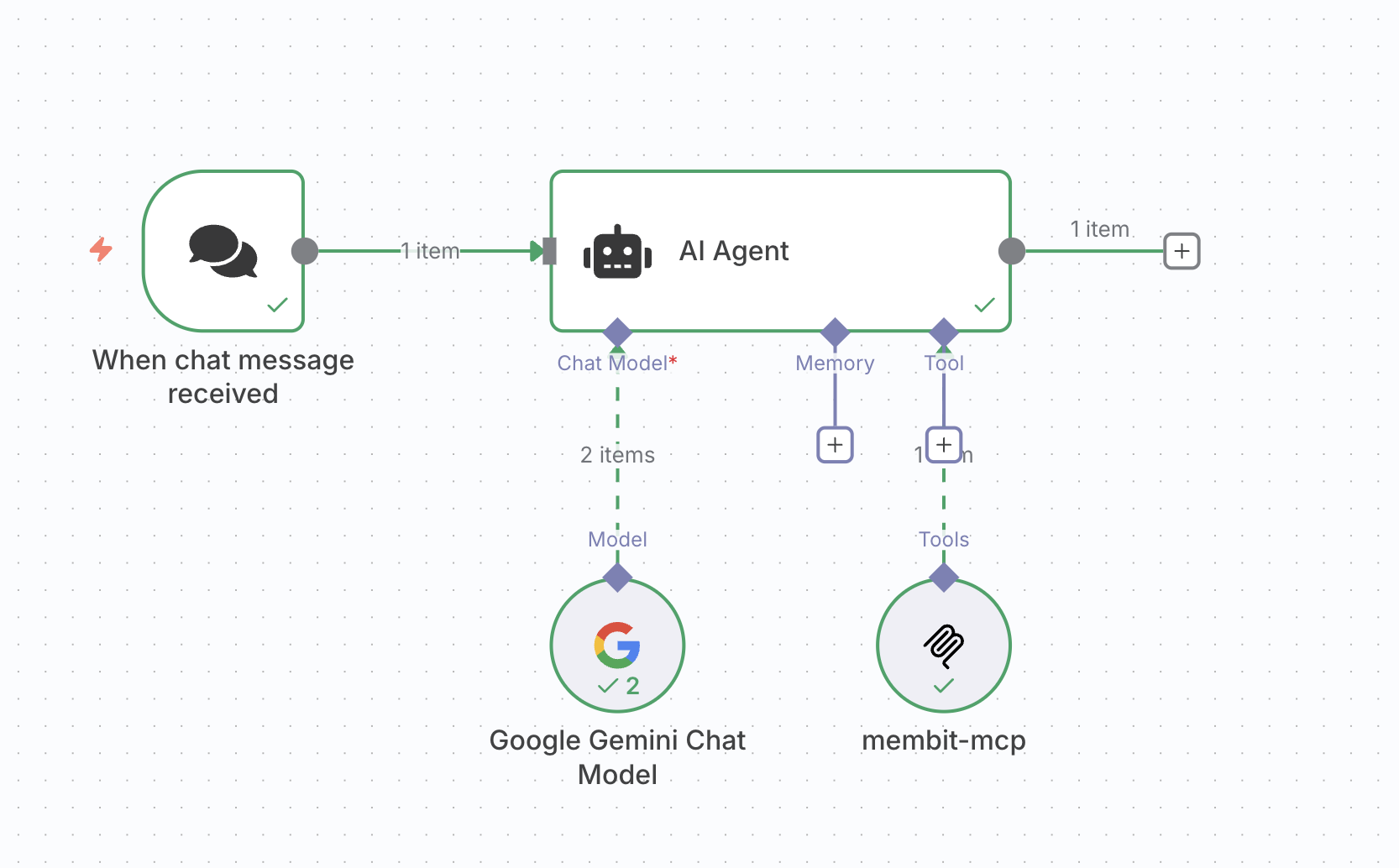 The visual connections show the data flow - the AI Agent receives input from the Chat Trigger, uses the Gemini model for processing, and accesses Membit for real-time context.
Use the chat interface to send a test message like:
```
"Tell me about crypto news"
```
or
```
"What's trending in AI today?"
```
Your AI agent should now respond with current, contextual information pulled from Membit's real-time data feed.
The visual connections show the data flow - the AI Agent receives input from the Chat Trigger, uses the Gemini model for processing, and accesses Membit for real-time context.
Use the chat interface to send a test message like:
```
"Tell me about crypto news"
```
or
```
"What's trending in AI today?"
```
Your AI agent should now respond with current, contextual information pulled from Membit's real-time data feed.
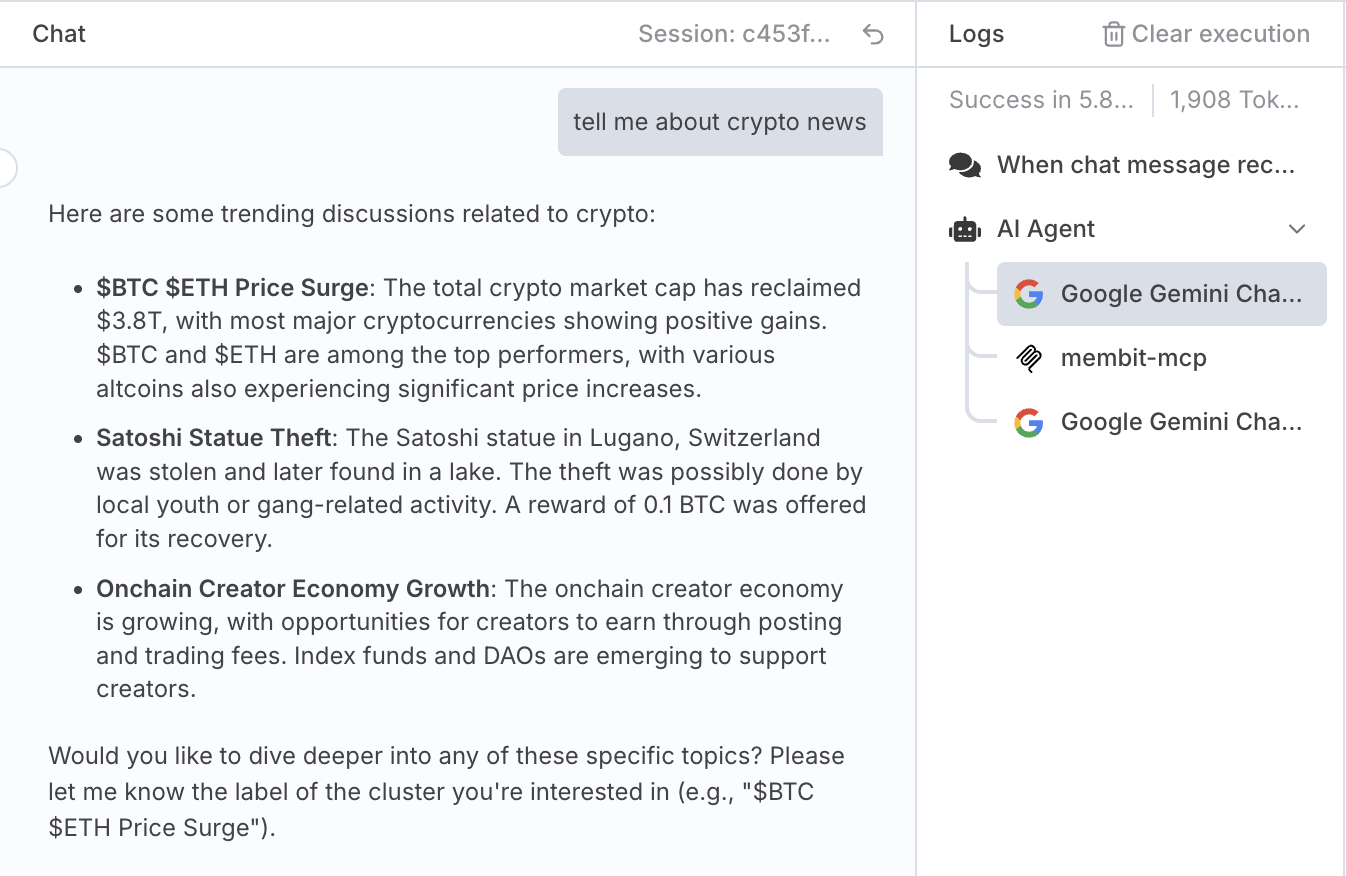 If successful, you'll see responses that include recent trends, discussions, and insights that wouldn't be available in static training data.
## Troubleshooting
**Problem**: Cannot connect to Membit MCP server in n8n
**Solutions**:
Verify the endpoint URL is correct: `https://mcp.membit.ai/mcp`
Ensure "Server Transport" is set to "HTTP Streamable"
Check that "Authentication" is set to "Header Auth"
Verify header name is exactly `X-Membit-Api-Key` (case-sensitive)
Test the connection with a simple request first
**Problem**: API key authentication is failing
**Solutions**:
Confirm the header name is `X-Membit-Api-Key` (not `Authorization`)
Ensure there are no extra spaces or characters in the API key value
Verify your Membit API key is active and valid
Check that the header value contains only the API key (no "Bearer " prefix)
Try regenerating your API key if authentication continues to fail
**Problem**: AI Agent doesn't use MCP Client tools
**Solutions**:
Ensure MCP Client is properly connected to the AI Agent node
Verify "Tools to Include" is set to "All" in MCP Client configuration
Check that the AI model (Google Gemini) supports function calling
Make prompts more explicit: "Use available tools to search for current information about..."
Test the MCP Client connection independently before connecting to AI Agent
**Problem**: Nodes won't connect or show connection issues
**Solutions**:
Verify the connection order: Chat Trigger → AI Agent, MCP Client → AI Agent
Ensure all required node inputs are satisfied
Check that node versions are compatible with each other
Try disconnecting and reconnecting nodes in the correct sequence
Restart the n8n workflow editor if connections appear broken
**Problem**: Chat interface doesn't respond or process messages
**Solutions**:
Verify the Chat Trigger node is properly configured and activated
Ensure the workflow is saved and deployed
Check that all nodes in the workflow are properly connected
Test with simple messages first to verify basic functionality
Review workflow execution logs for error messages
If successful, you'll see responses that include recent trends, discussions, and insights that wouldn't be available in static training data.
## Troubleshooting
**Problem**: Cannot connect to Membit MCP server in n8n
**Solutions**:
Verify the endpoint URL is correct: `https://mcp.membit.ai/mcp`
Ensure "Server Transport" is set to "HTTP Streamable"
Check that "Authentication" is set to "Header Auth"
Verify header name is exactly `X-Membit-Api-Key` (case-sensitive)
Test the connection with a simple request first
**Problem**: API key authentication is failing
**Solutions**:
Confirm the header name is `X-Membit-Api-Key` (not `Authorization`)
Ensure there are no extra spaces or characters in the API key value
Verify your Membit API key is active and valid
Check that the header value contains only the API key (no "Bearer " prefix)
Try regenerating your API key if authentication continues to fail
**Problem**: AI Agent doesn't use MCP Client tools
**Solutions**:
Ensure MCP Client is properly connected to the AI Agent node
Verify "Tools to Include" is set to "All" in MCP Client configuration
Check that the AI model (Google Gemini) supports function calling
Make prompts more explicit: "Use available tools to search for current information about..."
Test the MCP Client connection independently before connecting to AI Agent
**Problem**: Nodes won't connect or show connection issues
**Solutions**:
Verify the connection order: Chat Trigger → AI Agent, MCP Client → AI Agent
Ensure all required node inputs are satisfied
Check that node versions are compatible with each other
Try disconnecting and reconnecting nodes in the correct sequence
Restart the n8n workflow editor if connections appear broken
**Problem**: Chat interface doesn't respond or process messages
**Solutions**:
Verify the Chat Trigger node is properly configured and activated
Ensure the workflow is saved and deployed
Check that all nodes in the workflow are properly connected
Test with simple messages first to verify basic functionality
Review workflow execution logs for error messages