> ## Documentation Index
> Fetch the complete documentation index at: https://docs.membit.ai/llms.txt
> Use this file to discover all available pages before exploring further.
# Langflow
> Integrate real-time context to your LangFlow AI workflows via Membit MCP.
 Langflow is a visual framework for building multi-agent and RAG applications using a drag-and-drop interface. By integrating Membit with Langflow, you can enhance your AI agents with real-time social context, enabling them to access current trends, breaking news, and live conversations from across the web through a node-based visual workflow.
## Prerequisites
Before you begin, make sure you have:
* Langflow application installed ([download here](https://langflow.org))
* A Membit account with an API key [get your API key](/access-and-auth)
* Basic familiarity with Langflow's visual workflow builder
* A Google AI Studio API key for the chat model (optional)
## Setting Up Membit MCP Tools
Follow these steps to integrate Membit with your Langflow workflows:
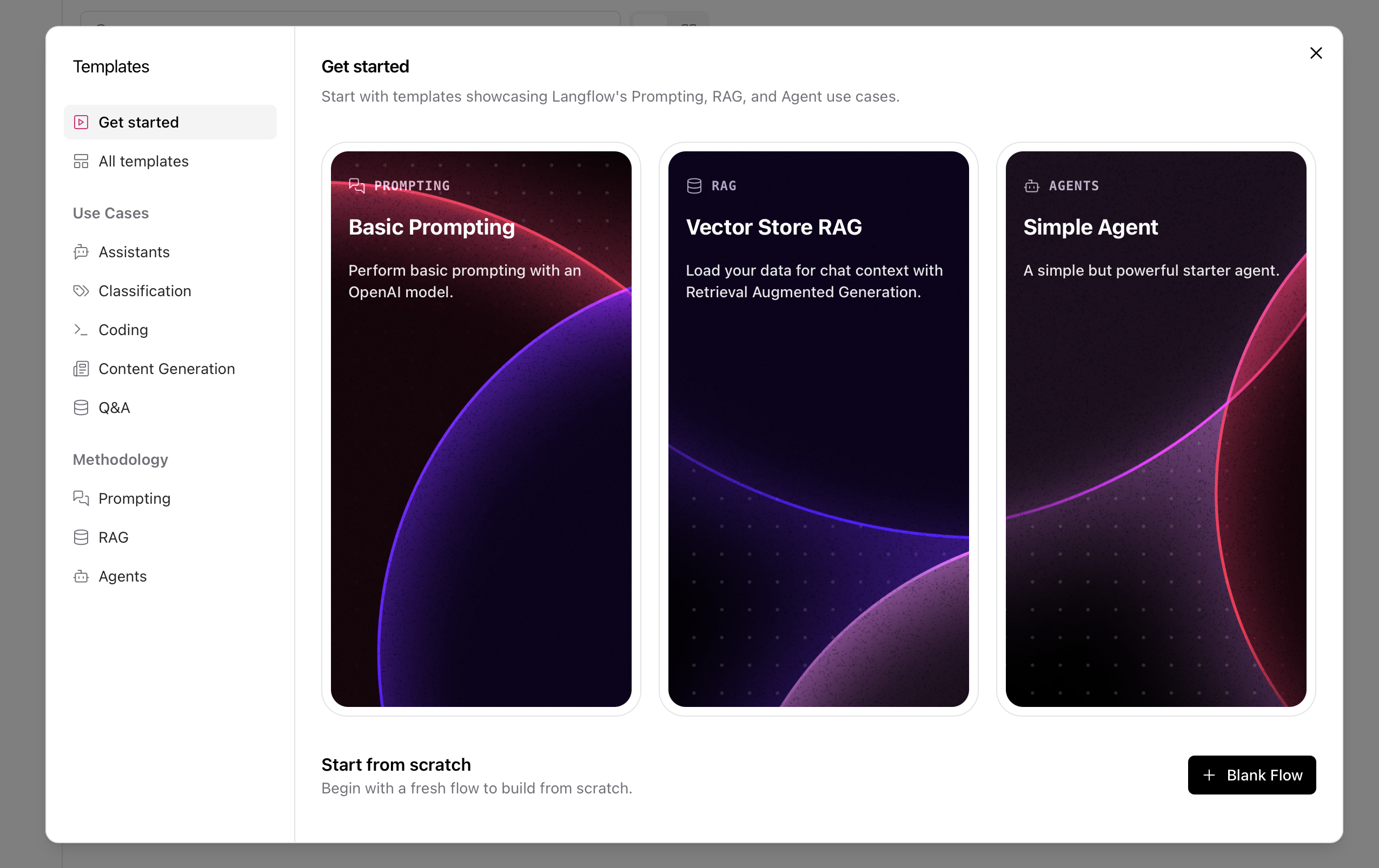
Open the Langflow application and click **Add New Flow** to start building a new workflow.
Langflow is a visual framework for building multi-agent and RAG applications using a drag-and-drop interface. By integrating Membit with Langflow, you can enhance your AI agents with real-time social context, enabling them to access current trends, breaking news, and live conversations from across the web through a node-based visual workflow.
## Prerequisites
Before you begin, make sure you have:
* Langflow application installed ([download here](https://langflow.org))
* A Membit account with an API key [get your API key](/access-and-auth)
* Basic familiarity with Langflow's visual workflow builder
* A Google AI Studio API key for the chat model (optional)
## Setting Up Membit MCP Tools
Follow these steps to integrate Membit with your Langflow workflows:
Open the Langflow application and click **Add New Flow** to start building a new workflow.
 Choose **Blank Flow** to start with a clean workspace where you can build your custom workflow.
 In the component search bar, type "MCP tools" to find the Model Context Protocol integration component.
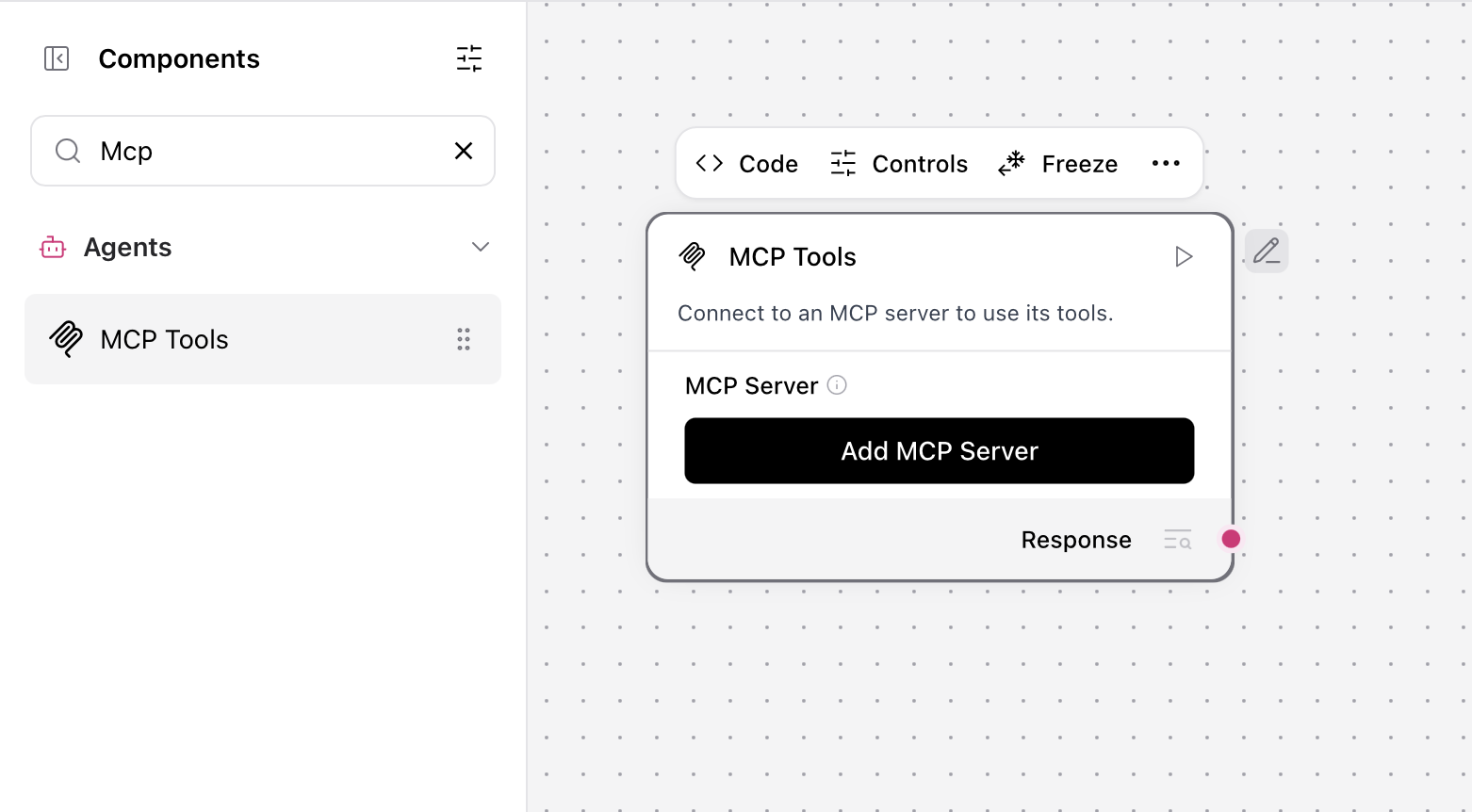 The MCP Tools component enables Langflow to connect with external MCP servers like Membit, providing real-time context to your workflows.
Configure the MCP Tools component by adding a new MCP server:
1. Click **Add MCP Server**
2. Select **STDIO** as the connection type
The MCP Tools component enables Langflow to connect with external MCP servers like Membit, providing real-time context to your workflows.
Configure the MCP Tools component by adding a new MCP server:
1. Click **Add MCP Server**
2. Select **STDIO** as the connection type
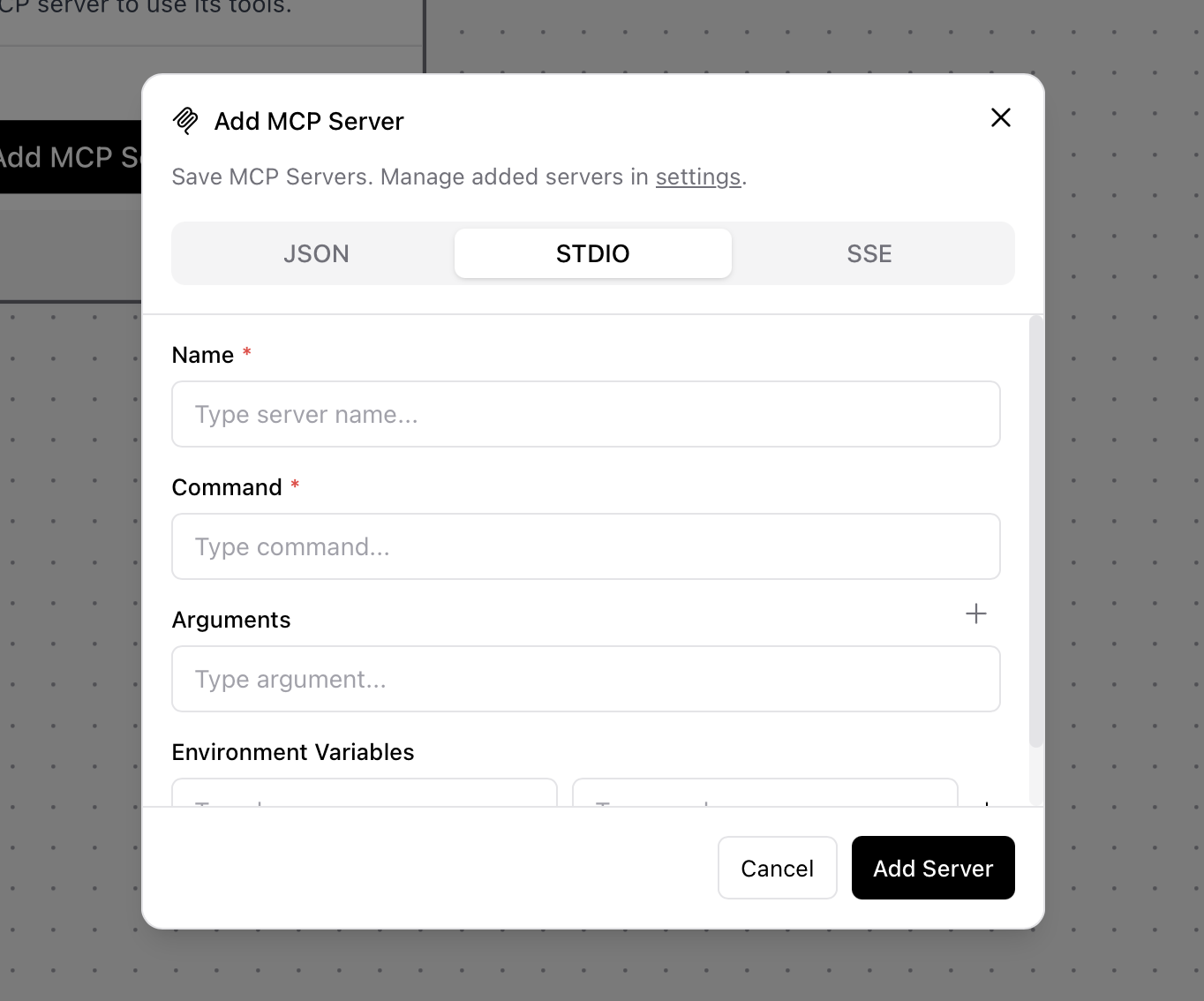 **STDIO Configuration:**
* **Name**: `membit-mcp`
* **Command**: `npx -y mcp-remote https://mcp.membit.ai/mcp`
* **Argument 1**: `--header`
* **Argument 2**: `X-Membit-Api-Key:${MEMBIT_API_KEY}`
* **Environment Variables**: `MEMBIT_API_KEY `
Replace `` with your actual Membit API key. Keep this credential secure and don't share it with unauthorized users.
3. Click **Add Server** to save the configuration
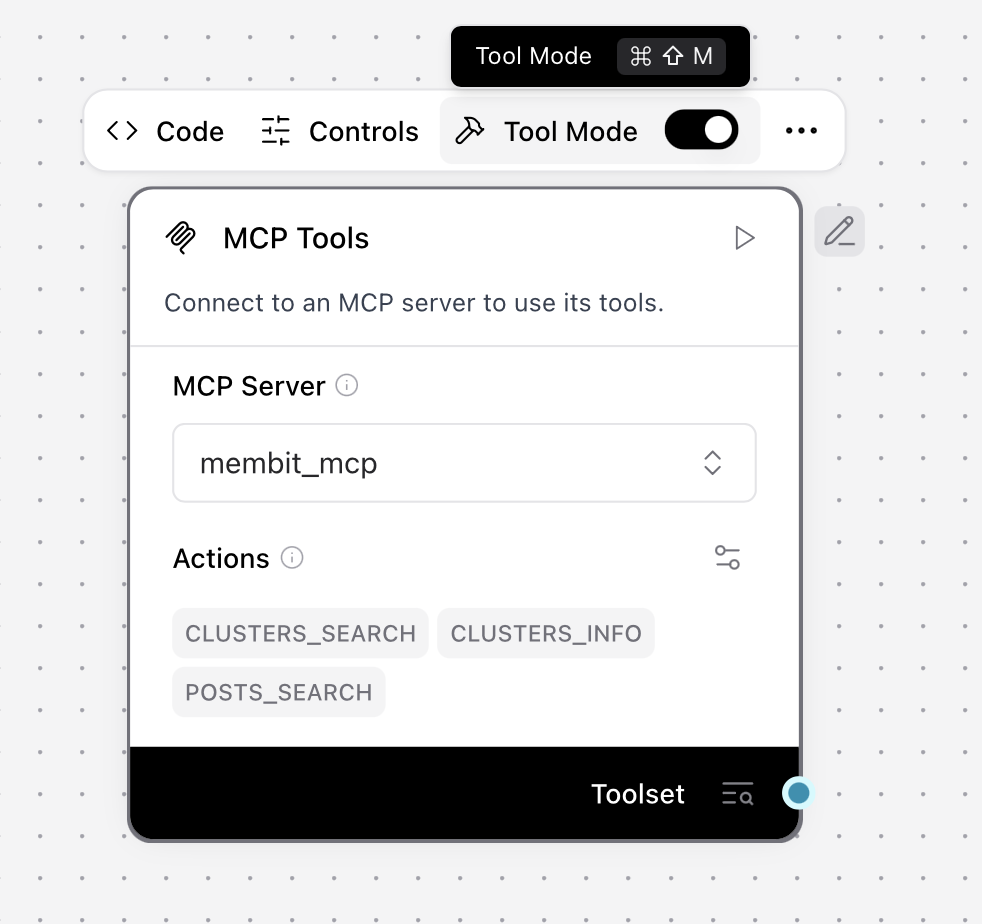
4. Click **Toggle Tool Mode** to enable the MCP tools
**STDIO Configuration:**
* **Name**: `membit-mcp`
* **Command**: `npx -y mcp-remote https://mcp.membit.ai/mcp`
* **Argument 1**: `--header`
* **Argument 2**: `X-Membit-Api-Key:${MEMBIT_API_KEY}`
* **Environment Variables**: `MEMBIT_API_KEY `
Replace `` with your actual Membit API key. Keep this credential secure and don't share it with unauthorized users.
3. Click **Add Server** to save the configuration
4. Click **Toggle Tool Mode** to enable the MCP tools
 ## Building Your First Workflow
Now let's create a complete workflow that uses Membit's real-time context:
Search for "agent" in the component library and click **Add** to add an Agent component to your workflow.
## Building Your First Workflow
Now let's create a complete workflow that uses Membit's real-time context:
Search for "agent" in the component library and click **Add** to add an Agent component to your workflow.
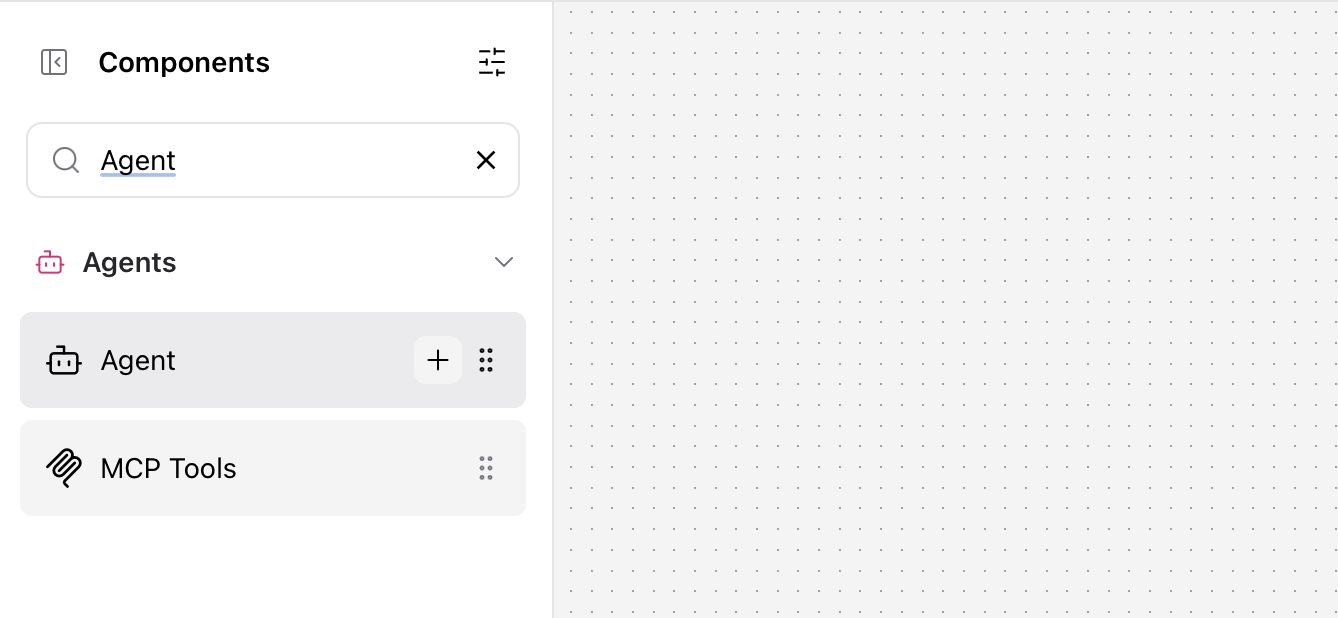 The Agent component acts as the orchestrator, managing how your workflow processes requests and coordinates responses.
Configure the Agent component with your preferred language model:
The Agent component acts as the orchestrator, managing how your workflow processes requests and coordinates responses.
Configure the Agent component with your preferred language model:
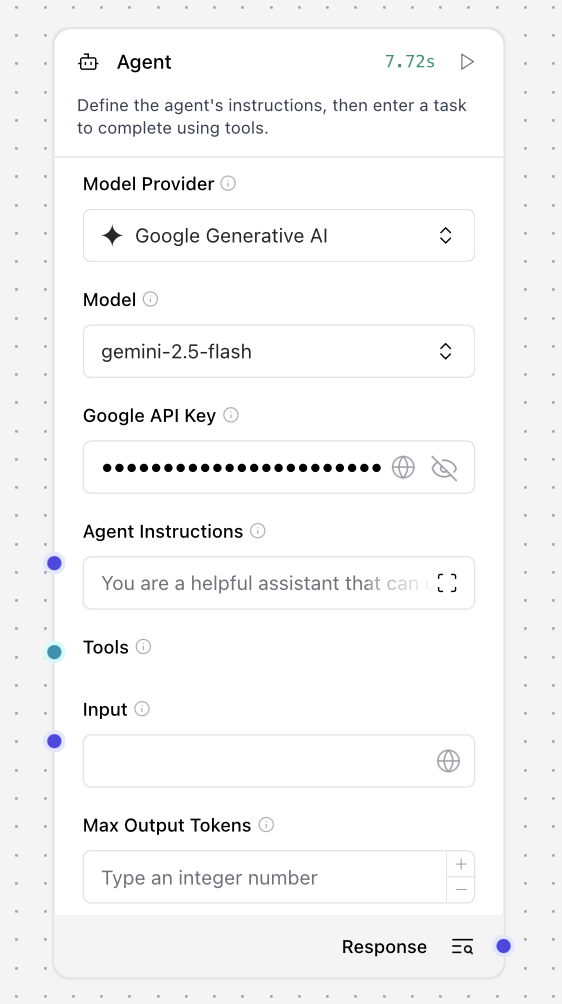 * **Model Provider**: Select "Gemini 2.5 Flash" (or your preferred model)
* **API Key**: Set your Google AI Studio API key
You can use other model providers like OpenAI, Anthropic, or local models depending on your preference and requirements.
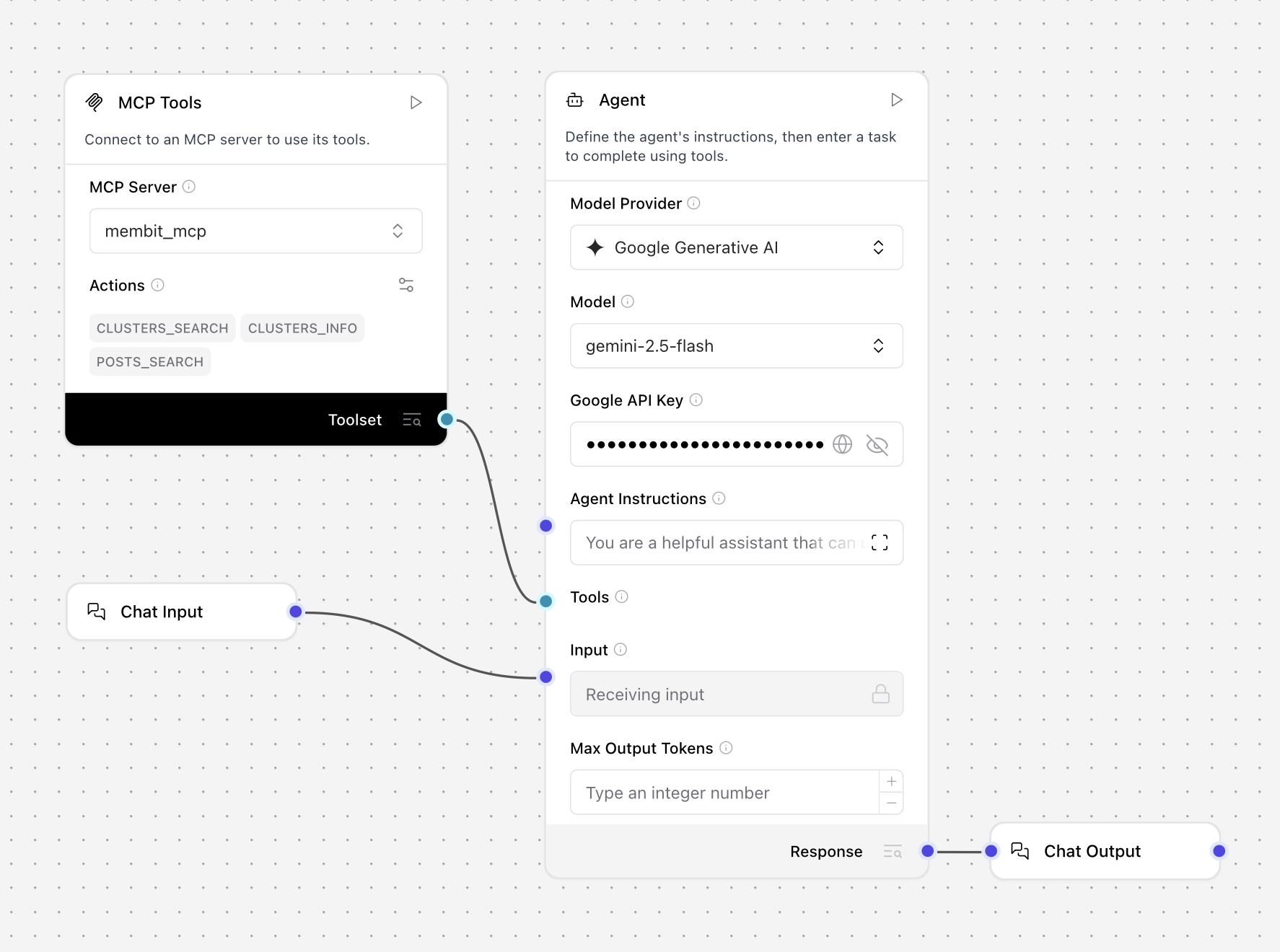
Connect the **Membit MCP** component to the **Agent Tools** input to provide real-time context capabilities.
This connection enables your agent to access Membit's real-time social media context when processing user queries.
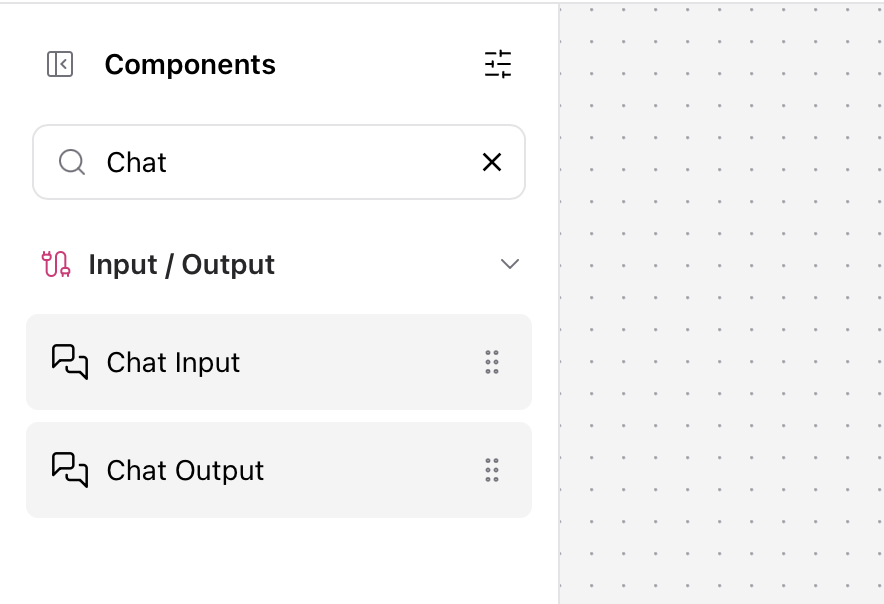
Add Chat Input and Chat Output components to create an interactive interface:
1. **Chat Input** - To receive user messages
2. **Chat Output** - To display agent responses
* **Model Provider**: Select "Gemini 2.5 Flash" (or your preferred model)
* **API Key**: Set your Google AI Studio API key
You can use other model providers like OpenAI, Anthropic, or local models depending on your preference and requirements.
Connect the **Membit MCP** component to the **Agent Tools** input to provide real-time context capabilities.
This connection enables your agent to access Membit's real-time social media context when processing user queries.
Add Chat Input and Chat Output components to create an interactive interface:
1. **Chat Input** - To receive user messages
2. **Chat Output** - To display agent responses
 **Connection Pattern:**
* **Chat Input** → **Agent Input**
* **Agent Response** → **Chat Output**
**Connection Pattern:**
* **Chat Input** → **Agent Input**
* **Agent Response** → **Chat Output**
 Click **Playground** to test your workflow with real-time context from Membit.
 Try asking questions like:
* "Tell me about crypto trends"
* "What's happening in AI today?"
* "Give me the latest tech news"
Try asking questions like:
* "Tell me about crypto trends"
* "What's happening in AI today?"
* "Give me the latest tech news"
 If successful, your agent will respond with current information about your query topic, powered by Membit's real-time data feed.
## Troubleshooting
**Problem**: Cannot establish STDIO connection to Membit MCP server
**Solutions**:
Verify `mcp-remote` is available: run `npx mcp-remote --version` in terminal
Check the command format: `npx -y mcp-remote https://mcp.membit.ai/mcp`
Ensure Node.js is properly installed and accessible to Langflow
Verify environment variable `MEMBIT_API_KEY` is set correctly
Try restarting Langflow after configuration changes
**Problem**: MCP tools don't appear or aren't accessible
**Solutions**:
Ensure "Toggle Tool Mode" is enabled after server configuration
Verify the MCP server status shows as "Connected"
Check server logs for connection errors or authentication failures
Try removing and re-adding the MCP server configuration
Confirm all arguments are in correct order: `--header` then `X-Membit-Api-Key:${MEMBIT_API_KEY}`
**Problem**: Agent doesn't utilize Membit tools in responses
**Solutions**:
Ensure MCP Tools component is properly connected to Agent Tools input
Try more explicit prompts: "Use the available tools to search for..."
Verify the chat model supports tool/function calling (Gemini 2.5 Flash recommended)
Check if the agent has proper system instructions about tool usage
Test with simpler, more direct questions about current events
**Problem**: Components won't connect or show connection errors
**Solutions**:
Verify component types match: Agent expects Tools input, not generic components
Check that all required inputs are connected (Chat Input → Agent, Model → Agent)
Ensure MCP Tools output is properly mapped to Agent Tools input
Try reconnecting components in the correct order
Restart the workflow and test connections step by step
If successful, your agent will respond with current information about your query topic, powered by Membit's real-time data feed.
## Troubleshooting
**Problem**: Cannot establish STDIO connection to Membit MCP server
**Solutions**:
Verify `mcp-remote` is available: run `npx mcp-remote --version` in terminal
Check the command format: `npx -y mcp-remote https://mcp.membit.ai/mcp`
Ensure Node.js is properly installed and accessible to Langflow
Verify environment variable `MEMBIT_API_KEY` is set correctly
Try restarting Langflow after configuration changes
**Problem**: MCP tools don't appear or aren't accessible
**Solutions**:
Ensure "Toggle Tool Mode" is enabled after server configuration
Verify the MCP server status shows as "Connected"
Check server logs for connection errors or authentication failures
Try removing and re-adding the MCP server configuration
Confirm all arguments are in correct order: `--header` then `X-Membit-Api-Key:${MEMBIT_API_KEY}`
**Problem**: Agent doesn't utilize Membit tools in responses
**Solutions**:
Ensure MCP Tools component is properly connected to Agent Tools input
Try more explicit prompts: "Use the available tools to search for..."
Verify the chat model supports tool/function calling (Gemini 2.5 Flash recommended)
Check if the agent has proper system instructions about tool usage
Test with simpler, more direct questions about current events
**Problem**: Components won't connect or show connection errors
**Solutions**:
Verify component types match: Agent expects Tools input, not generic components
Check that all required inputs are connected (Chat Input → Agent, Model → Agent)
Ensure MCP Tools output is properly mapped to Agent Tools input
Try reconnecting components in the correct order
Restart the workflow and test connections step by step