> ## Documentation Index
> Fetch the complete documentation index at: https://docs.membit.ai/llms.txt
> Use this file to discover all available pages before exploring further.
# Gumloop
> Integrate real-time context to your Gumloop AI workflows via Membit MCP.
 **Current Integration Issue**: There are currently limitations with setting
custom headers in the Gumloop MCP server configuration, which may prevent
proper authentication with Membit's API. We are working to resolve this issue.
Gumloop is an intuitive no-code platform that enables you to build AI-powered workflows and automations. By integrating Membit with Gumloop, you can enhance your AI agents with real-time social context, allowing them to access current trends, breaking news, and live conversations from across the web.
## Prerequisites
Before you begin, make sure you have:
* An active Gumloop account ([sign up here](https://gumloop.com))
* A Membit account with an API key [get your API key](/access-and-auth)
* Basic familiarity with Gumloop's workflow builder
## Setting Up Membit MCP Server
Follow these steps to integrate Membit with your Gumloop workflows:
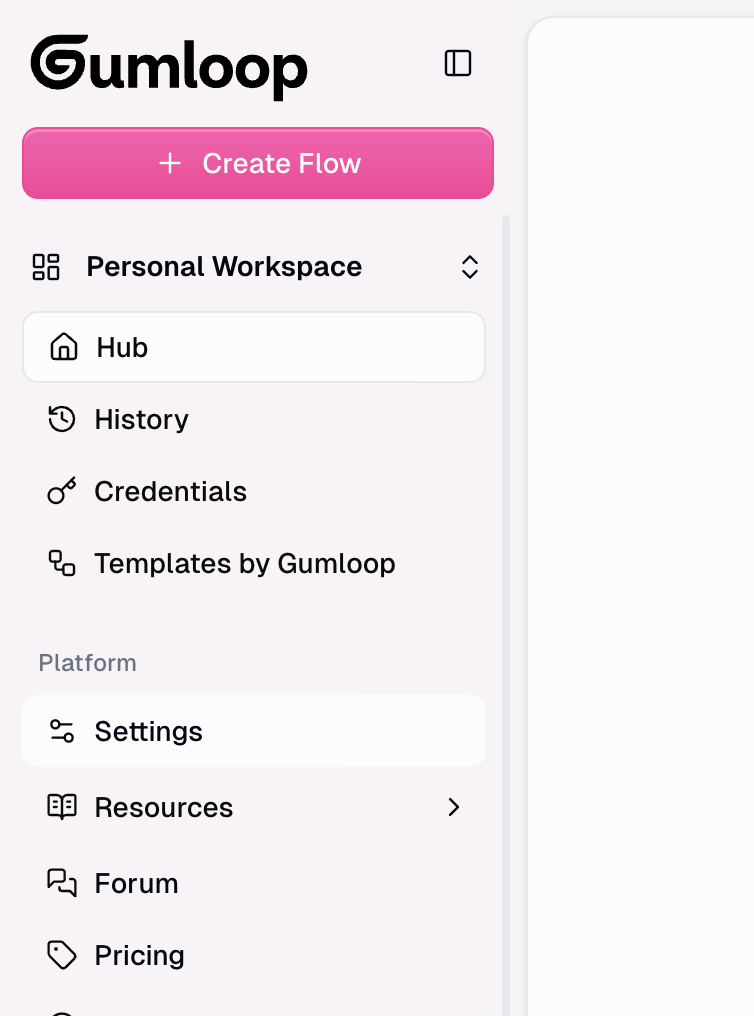
Navigate to your Gumloop dashboard and click on the **Settings** option in the main menu.
**Current Integration Issue**: There are currently limitations with setting
custom headers in the Gumloop MCP server configuration, which may prevent
proper authentication with Membit's API. We are working to resolve this issue.
Gumloop is an intuitive no-code platform that enables you to build AI-powered workflows and automations. By integrating Membit with Gumloop, you can enhance your AI agents with real-time social context, allowing them to access current trends, breaking news, and live conversations from across the web.
## Prerequisites
Before you begin, make sure you have:
* An active Gumloop account ([sign up here](https://gumloop.com))
* A Membit account with an API key [get your API key](/access-and-auth)
* Basic familiarity with Gumloop's workflow builder
## Setting Up Membit MCP Server
Follow these steps to integrate Membit with your Gumloop workflows:
Navigate to your Gumloop dashboard and click on the **Settings** option in the main menu.
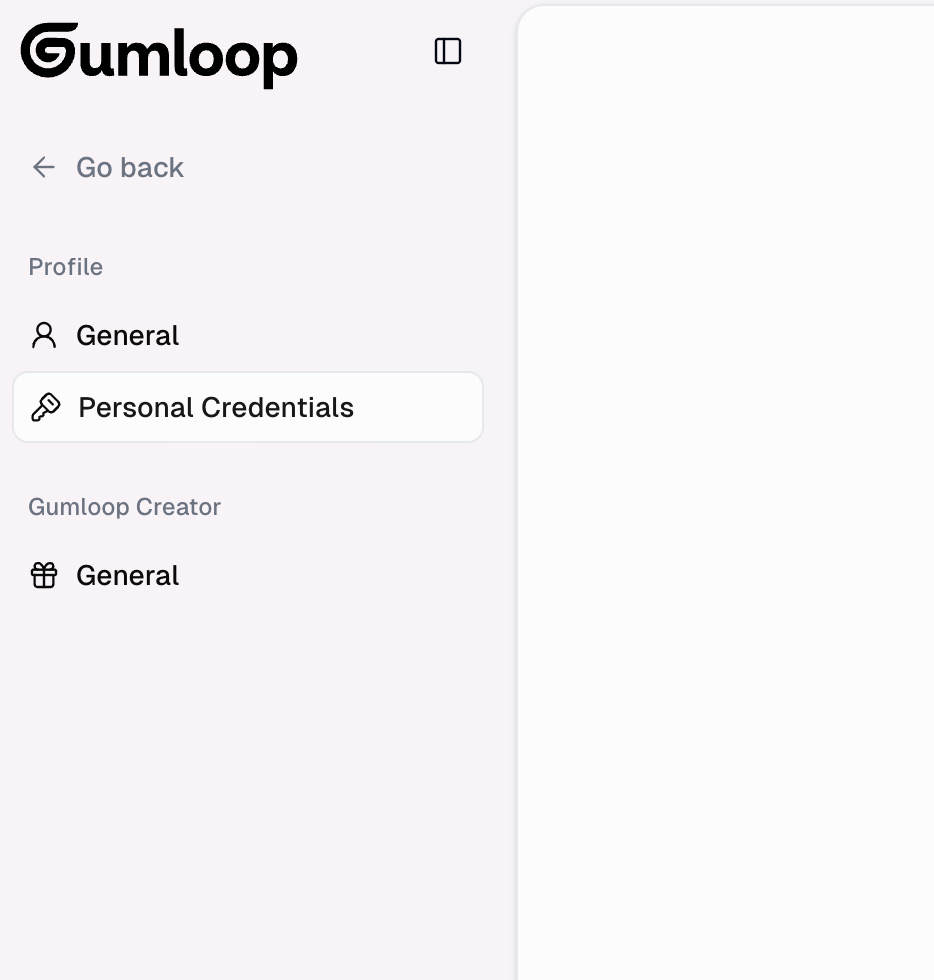
 In the settings menu, locate and click on **Personal Credentials** to manage your external service connections.
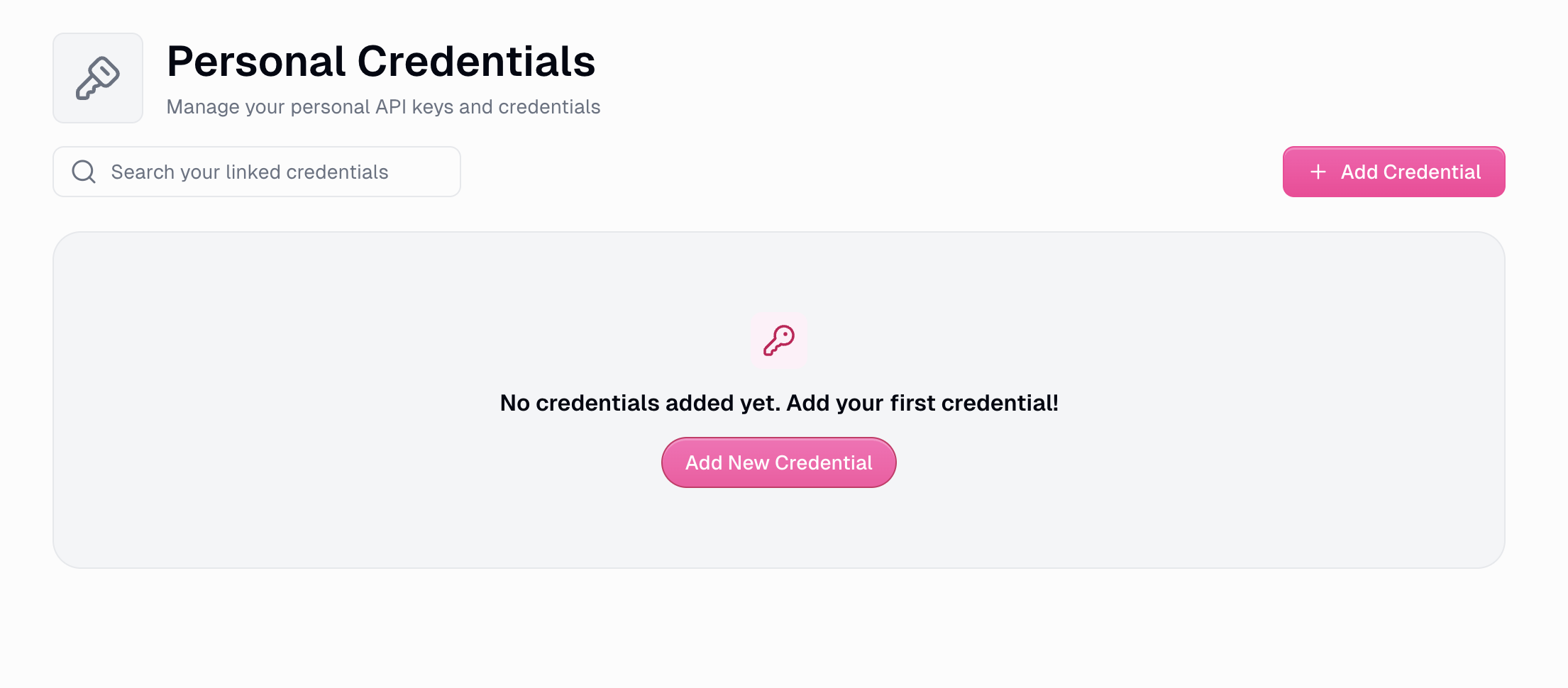
 Click the **Add Credentials** button to create a new credential set for external services.
 In the credential type search, type "MCP server" and select the **MCP Server** option when it appears.
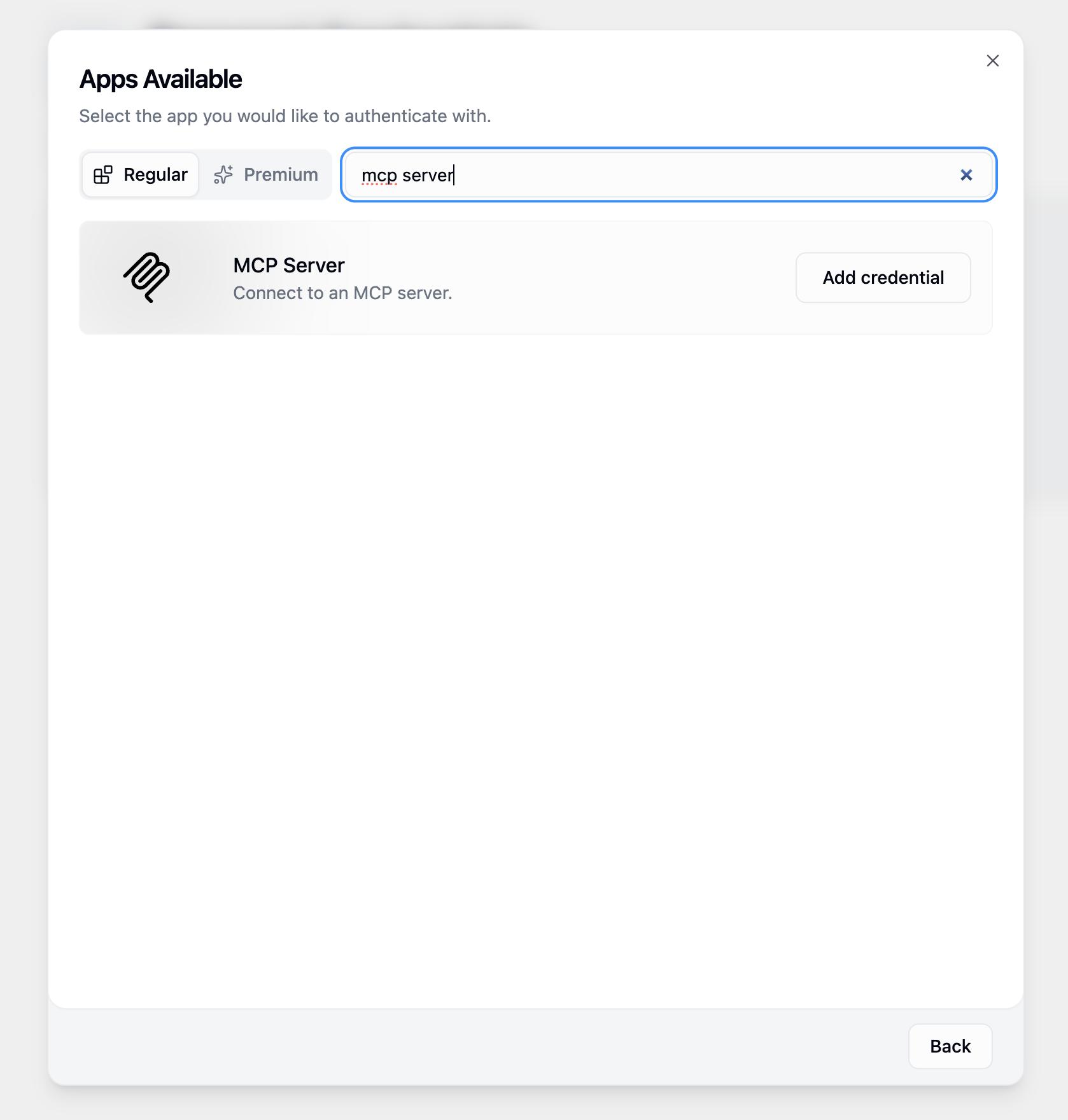 The MCP Server credential type enables Gumloop to connect with external Model Context Protocol servers like Membit.
Fill in the MCP server configuration with the following details:
```
URL: https://mcp.membit.ai/mcp
Label: membit-mcp
Additional Header: X-Membit-Api-Key:
```
The MCP Server credential type enables Gumloop to connect with external Model Context Protocol servers like Membit.
Fill in the MCP server configuration with the following details:
```
URL: https://mcp.membit.ai/mcp
Label: membit-mcp
Additional Header: X-Membit-Api-Key:
```
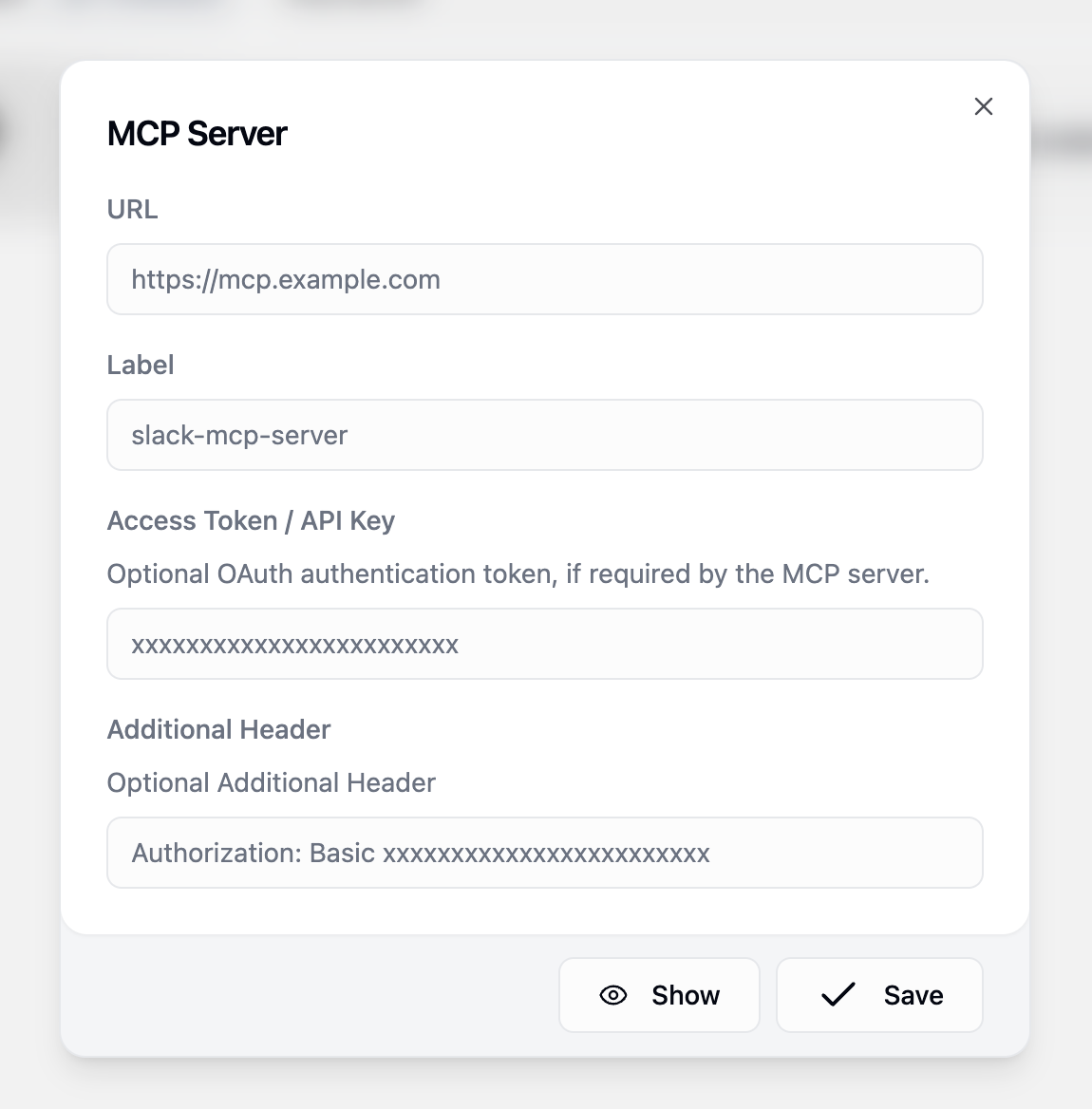 Replace `` with your actual Membit API key. Keep this credential secure and don't share it with unauthorized users.
Click **Save** to store your MCP server credentials.
## Building Your First Workflow
Now that your Membit MCP server is configured, let's create a workflow that uses real-time context:
Go to the **Hub** section in your Gumloop dashboard to access the workflow builder.
Replace `` with your actual Membit API key. Keep this credential secure and don't share it with unauthorized users.
Click **Save** to store your MCP server credentials.
## Building Your First Workflow
Now that your Membit MCP server is configured, let's create a workflow that uses real-time context:
Go to the **Hub** section in your Gumloop dashboard to access the workflow builder.
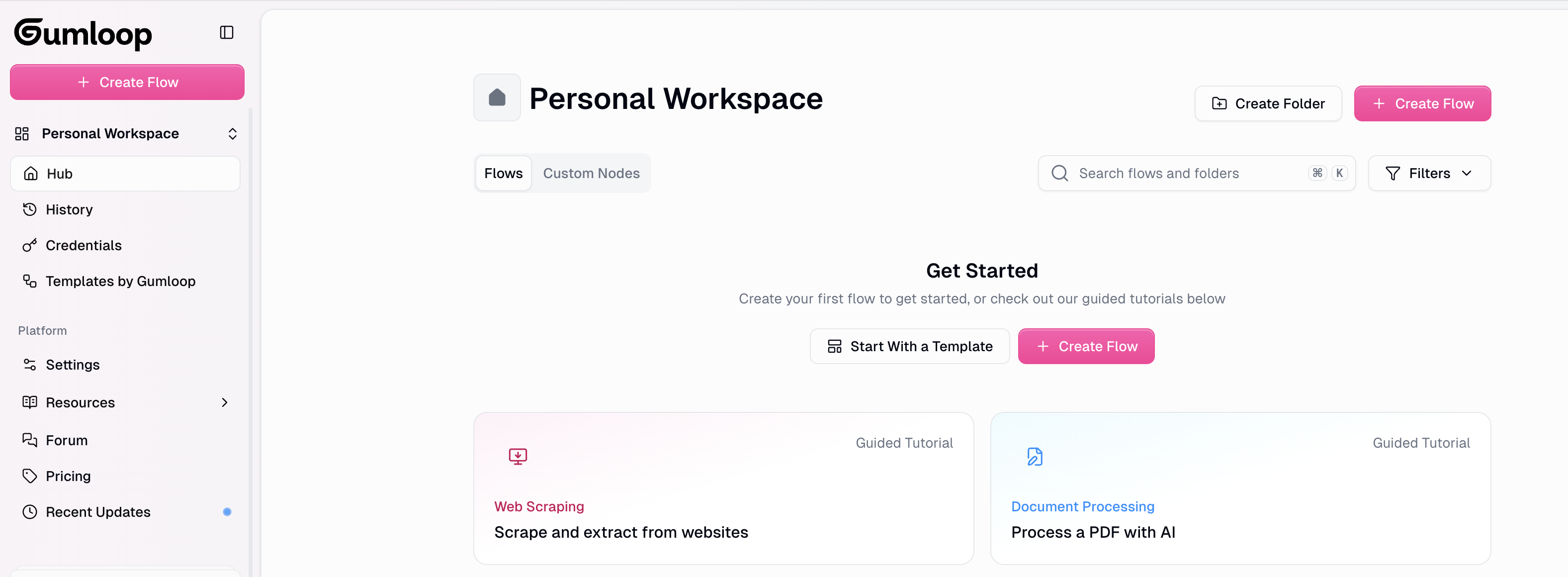 Click **Create Flow** to start building a new workflow from scratch.
Click **Add your first node** to begin building your workflow logic.
Click **Create Flow** to start building a new workflow from scratch.
Click **Add your first node** to begin building your workflow logic.
 In the node search bar, type "Ask AI" to find the AI conversation node.
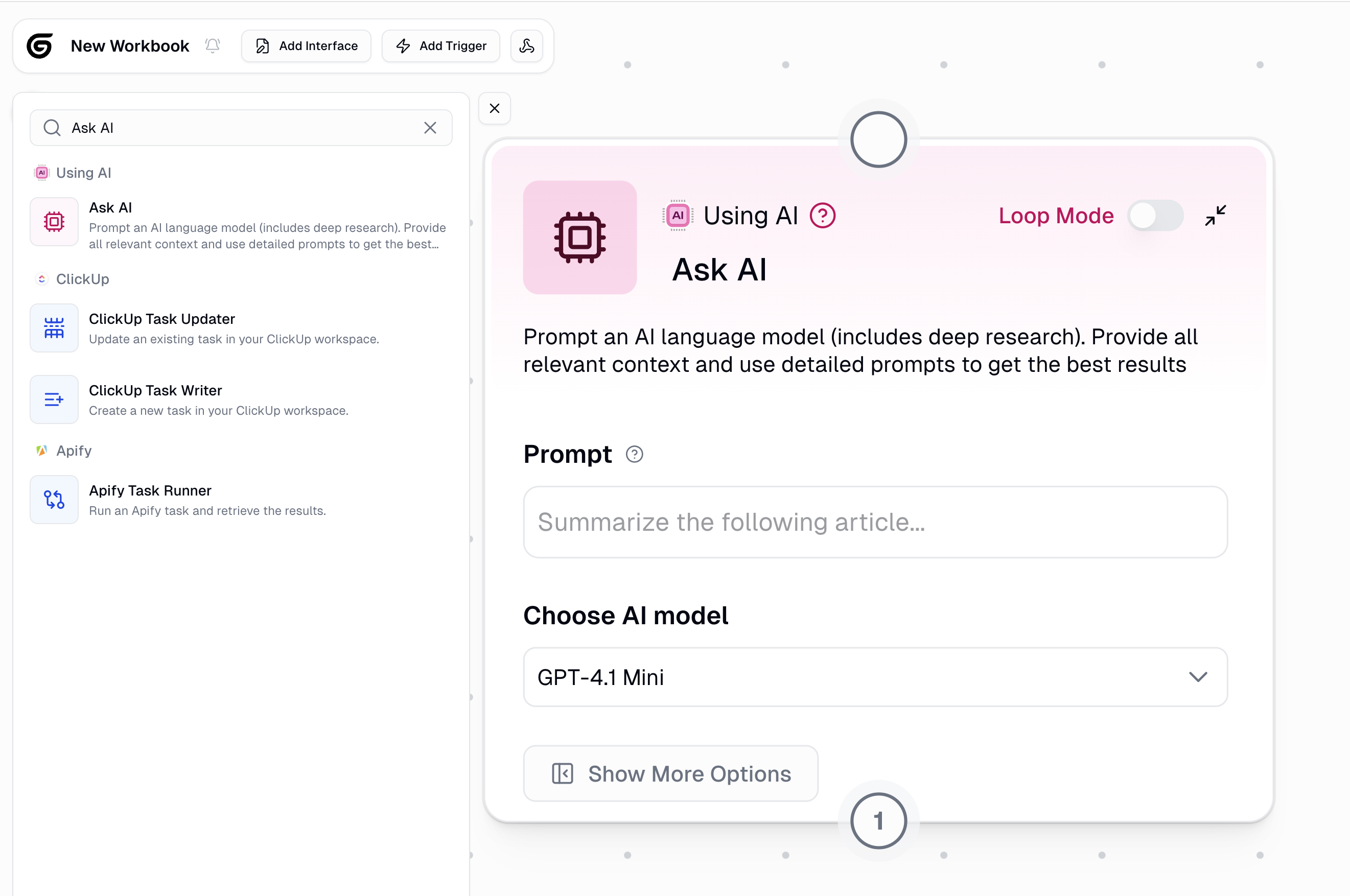 Select the **Ask AI** node and configure it with these settings:
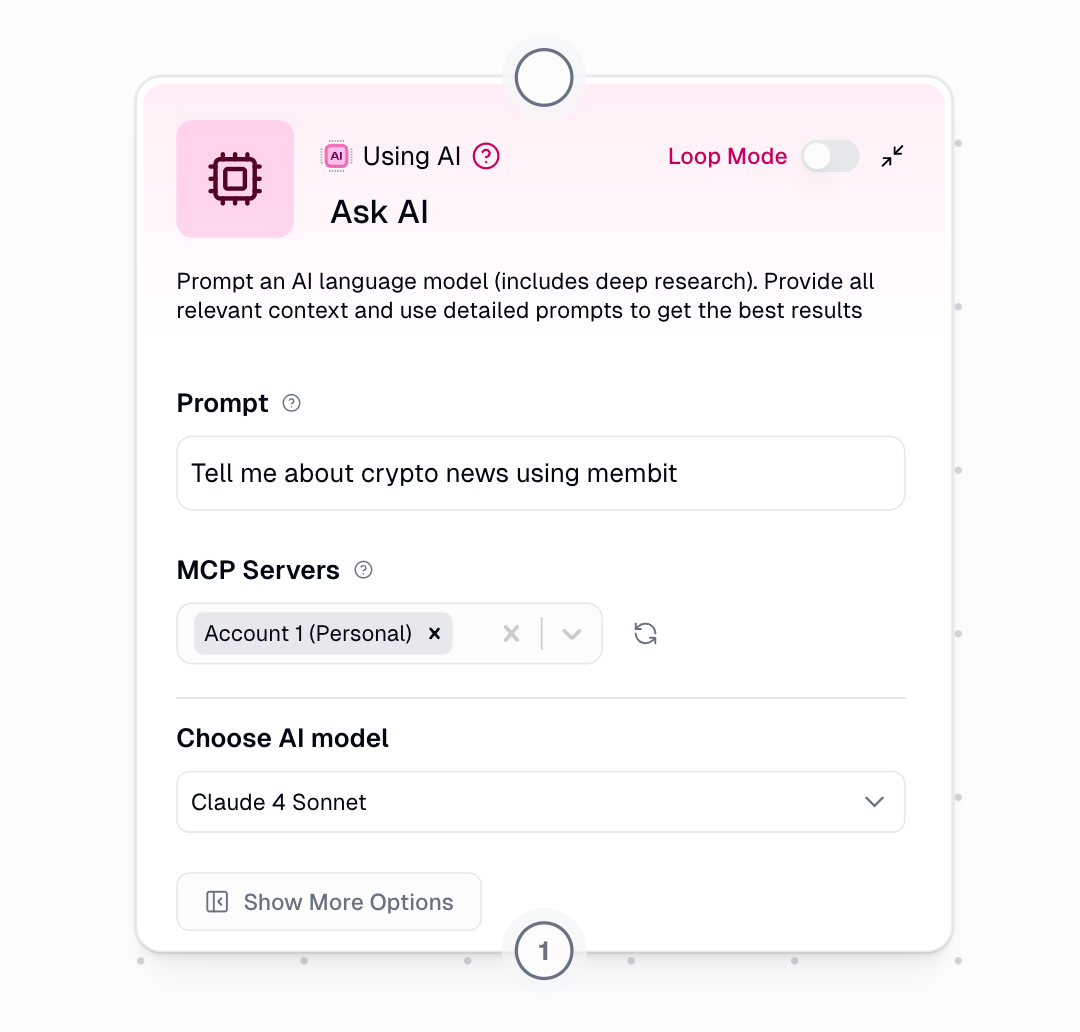 **Basic Configuration:**
* **Prompt**: "Tell me about crypto news using membit" (or your preferred query)
* **AI Model**: Choose "Claude 4 Sonnet" or your preferred model
**Basic Configuration:**
* **Prompt**: "Tell me about crypto news using membit" (or your preferred query)
* **AI Model**: Choose "Claude 4 Sonnet" or your preferred model
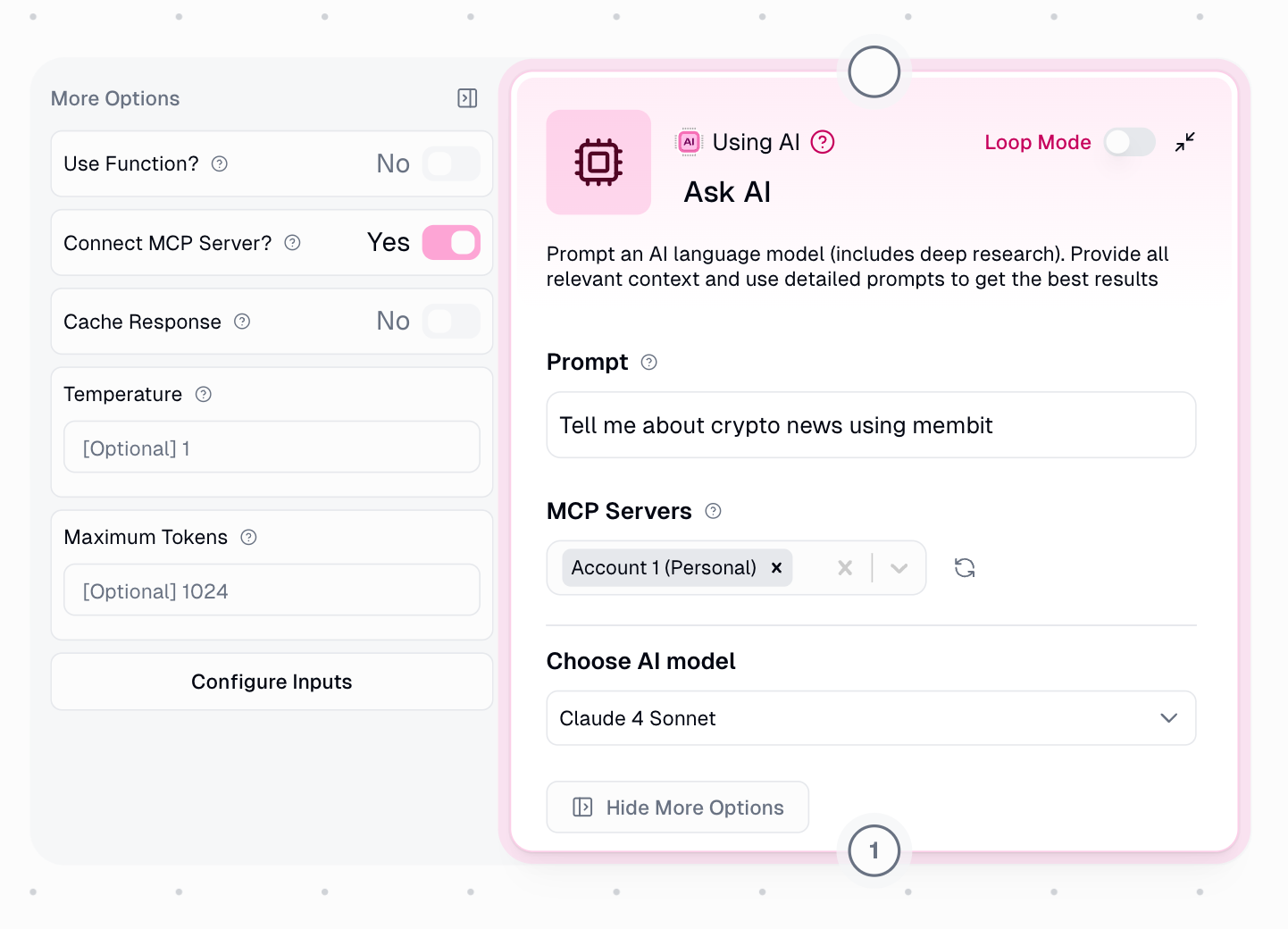 **Advanced Options:**
1. Click **"Show more options"**
2. Set **"Connect MCP server"** to **Yes**
3. Choose **MCP servers**: Select the "membit-mcp" you created earlier
Click **Run** to execute your workflow and see Membit's real-time context in action.
**Advanced Options:**
1. Click **"Show more options"**
2. Set **"Connect MCP server"** to **Yes**
3. Choose **MCP servers**: Select the "membit-mcp" you created earlier
Click **Run** to execute your workflow and see Membit's real-time context in action.
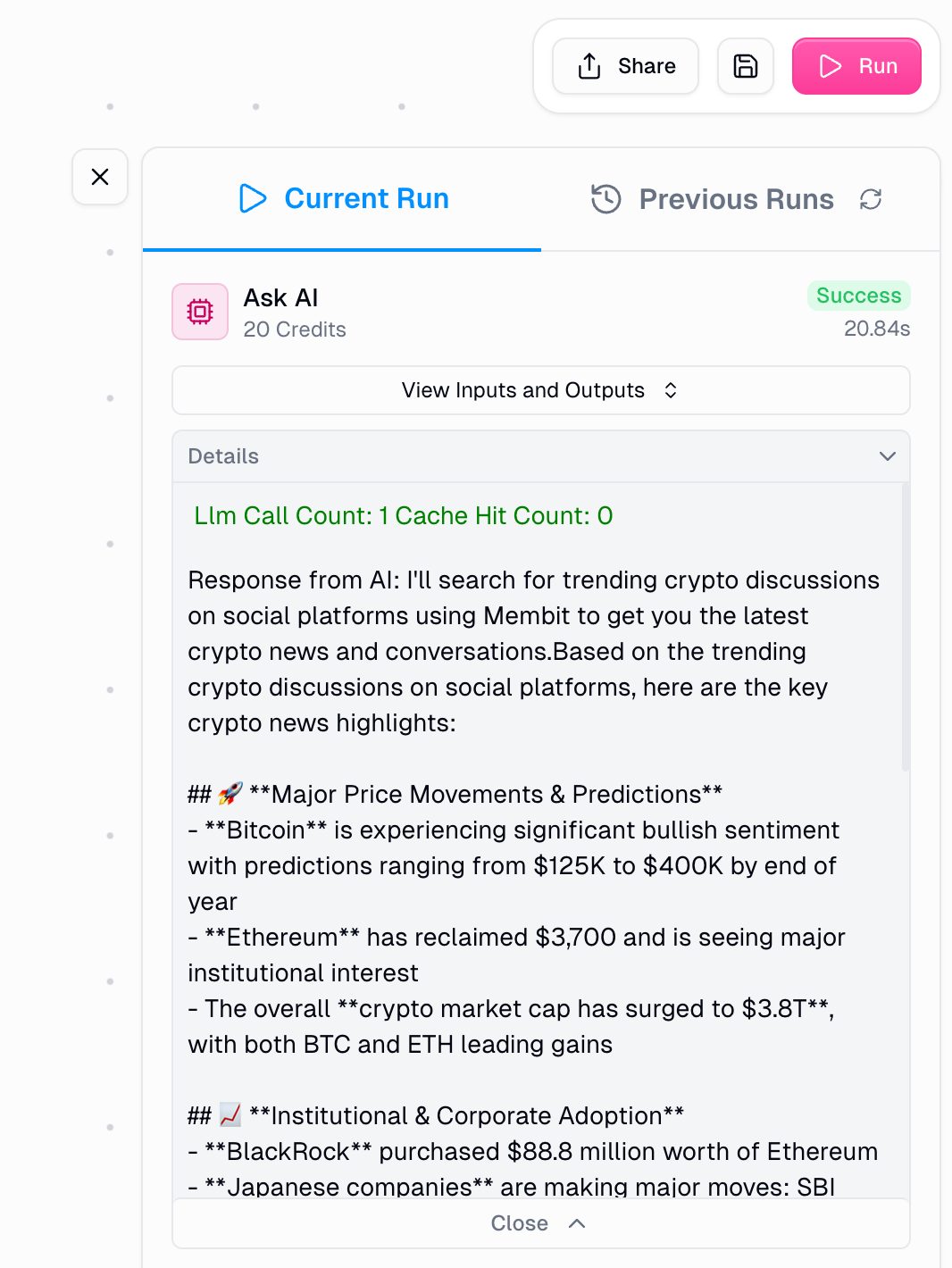 If successful, your AI agent will respond with current information about your query topic, powered by Membit's real-time data feed.
## Troubleshooting
**Problem**: Cannot connect to Membit MCP server in Gumloop
**Solutions**:
Verify the MCP server URL is correct: `https://mcp.membit.ai/mcp`
Check your API key is correct and active
Ensure the Additional Header format is exact: `X-Membit-Api-Key: `
Try re-saving the MCP server credentials
Check if Gumloop has proper internet access
**Problem**: API key authentication is failing
**Solutions**:
Verify your Membit API key is active in your dashboard
Ensure there are no extra spaces or characters in the API key
Check that the header name is exactly `X-Membit-Api-Key` (case-sensitive)
Try generating a new API key if the current one isn't working
Confirm your Membit account has sufficient credits/usage allowance
**Problem**: Ask AI node doesn't use Membit tools
**Solutions**:
Ensure "Connect MCP server" is set to **Yes**
Verify the "membit-mcp" server is selected in MCP servers dropdown
Try switching to Claude 4 Sonnet model for better tool usage
Make your prompt more explicit about using Membit: "Use membit to tell me about..."
Check if the workflow has proper permissions to access external servers
If successful, your AI agent will respond with current information about your query topic, powered by Membit's real-time data feed.
## Troubleshooting
**Problem**: Cannot connect to Membit MCP server in Gumloop
**Solutions**:
Verify the MCP server URL is correct: `https://mcp.membit.ai/mcp`
Check your API key is correct and active
Ensure the Additional Header format is exact: `X-Membit-Api-Key: `
Try re-saving the MCP server credentials
Check if Gumloop has proper internet access
**Problem**: API key authentication is failing
**Solutions**:
Verify your Membit API key is active in your dashboard
Ensure there are no extra spaces or characters in the API key
Check that the header name is exactly `X-Membit-Api-Key` (case-sensitive)
Try generating a new API key if the current one isn't working
Confirm your Membit account has sufficient credits/usage allowance
**Problem**: Ask AI node doesn't use Membit tools
**Solutions**:
Ensure "Connect MCP server" is set to **Yes**
Verify the "membit-mcp" server is selected in MCP servers dropdown
Try switching to Claude 4 Sonnet model for better tool usage
Make your prompt more explicit about using Membit: "Use membit to tell me about..."
Check if the workflow has proper permissions to access external servers