> ## Documentation Index
> Fetch the complete documentation index at: https://docs.membit.ai/llms.txt
> Use this file to discover all available pages before exploring further.
# Flowise
> Integrate real-time context to your Flowise chatflows via Membit MCP.
 Flowise is a visual low-code platform for building AI-powered chatflows and agents. By integrating Membit with Flowise, you can enhance your AI agents with real-time social context, enabling them to access current trends, breaking news, and live conversations from across the web through a visual drag-and-drop interface.
## Prerequisites
Before you begin, make sure you have:
* An active Flowise instance (cloud or self-hosted)
* A Membit account with an API key [get your API key](/access-and-auth)
* Basic familiarity with Flowise's visual workflow builder
* A Google AI Studio API key for the chat model (optional)
## Setting Up Membit Custom MCP
Follow these steps to integrate Membit with your Flowise chatflows:
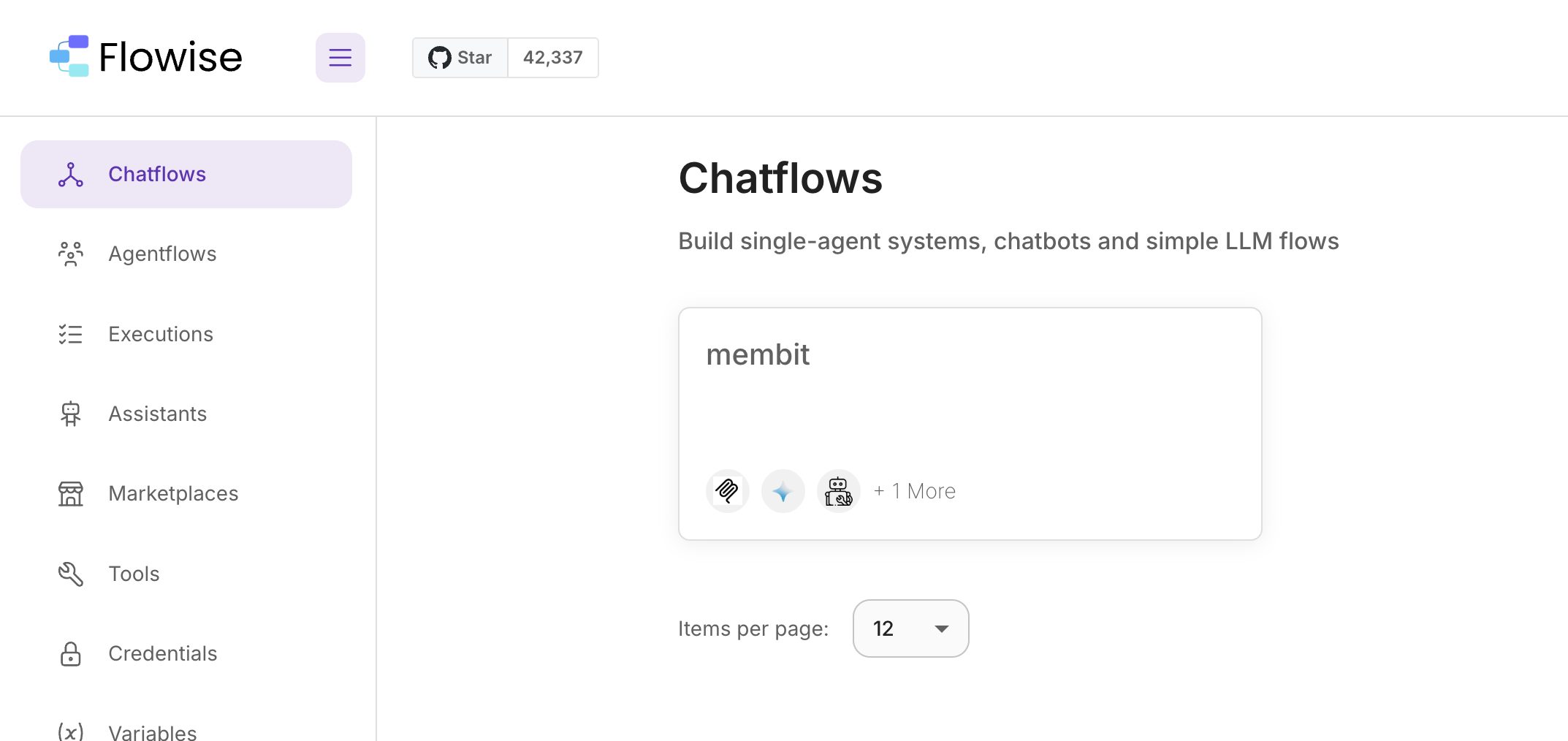
Navigate to your Flowise dashboard and click **Chatflows** in the menu bar to access the workflow builder.
Flowise is a visual low-code platform for building AI-powered chatflows and agents. By integrating Membit with Flowise, you can enhance your AI agents with real-time social context, enabling them to access current trends, breaking news, and live conversations from across the web through a visual drag-and-drop interface.
## Prerequisites
Before you begin, make sure you have:
* An active Flowise instance (cloud or self-hosted)
* A Membit account with an API key [get your API key](/access-and-auth)
* Basic familiarity with Flowise's visual workflow builder
* A Google AI Studio API key for the chat model (optional)
## Setting Up Membit Custom MCP
Follow these steps to integrate Membit with your Flowise chatflows:
Navigate to your Flowise dashboard and click **Chatflows** in the menu bar to access the workflow builder.
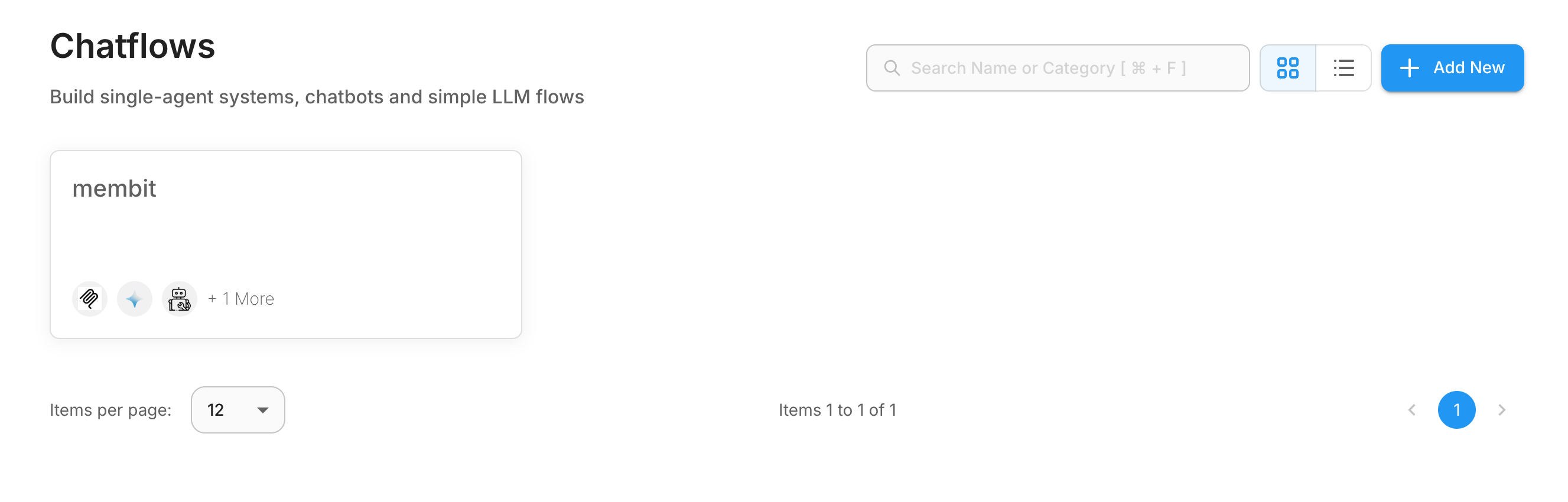
 Click **Add New** to start building a new chatflow from scratch.
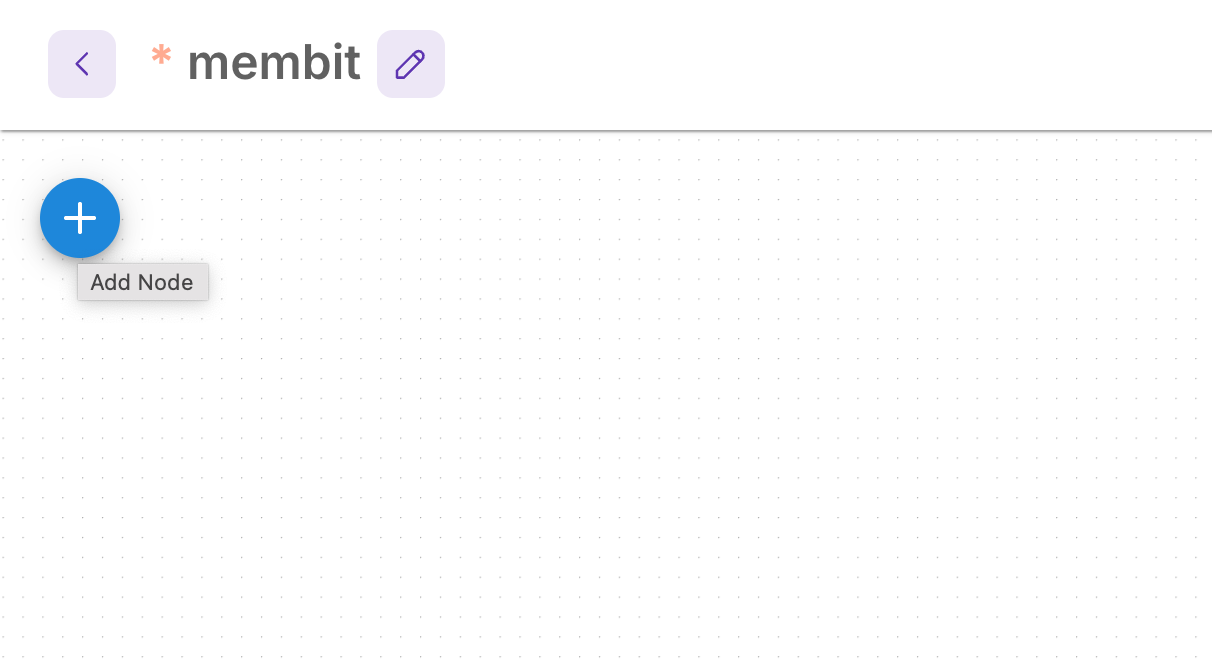
 Click **Add Node** in the top left corner to open the node library.
 In the node search bar, type "Custom MCP" to find the Model Context Protocol integration node.
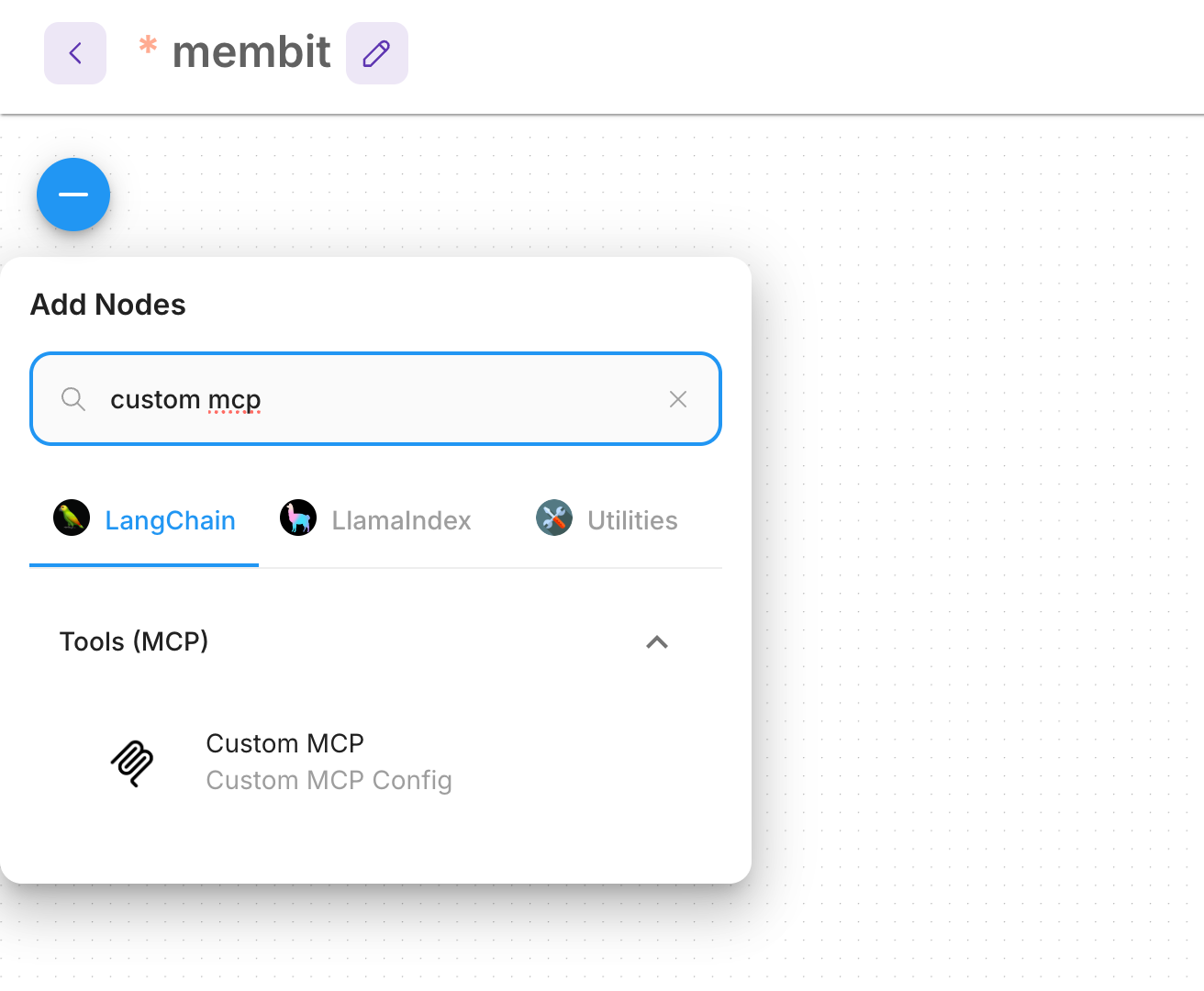 The Custom MCP node enables Flowise to connect with external MCP servers like Membit, providing real-time context to your chatflows.
Drag and drop the **Custom MCP** node to your chatflow board, then configure it with your Membit server details.
The Custom MCP node enables Flowise to connect with external MCP servers like Membit, providing real-time context to your chatflows.
Drag and drop the **Custom MCP** node to your chatflow board, then configure it with your Membit server details.
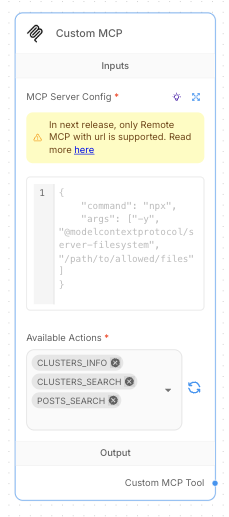 **MCP Server Configuration:**
Set the configuration using JSON format and replace with your Membit API key:
```json theme={null}
{
"url": "https://mcp.membit.ai/mcp",
"headers": {
"X-Membit-Api-Key": "{{$vars.MEMBIT_API_KEY}}"
}
}
```
To use your API key securely, create a `MEMBIT_API_KEY` variable in Flowise
After configuration, click the **refresh button** to load available actions, then select the actions you want to use.
## Building Your First Chatflow
Now let's create a complete chatflow that uses Membit's real-time context:
Search for and add a **ChatGoogleGenerativeAI** node to handle the conversational AI.
**MCP Server Configuration:**
Set the configuration using JSON format and replace with your Membit API key:
```json theme={null}
{
"url": "https://mcp.membit.ai/mcp",
"headers": {
"X-Membit-Api-Key": "{{$vars.MEMBIT_API_KEY}}"
}
}
```
To use your API key securely, create a `MEMBIT_API_KEY` variable in Flowise
After configuration, click the **refresh button** to load available actions, then select the actions you want to use.
## Building Your First Chatflow
Now let's create a complete chatflow that uses Membit's real-time context:
Search for and add a **ChatGoogleGenerativeAI** node to handle the conversational AI.
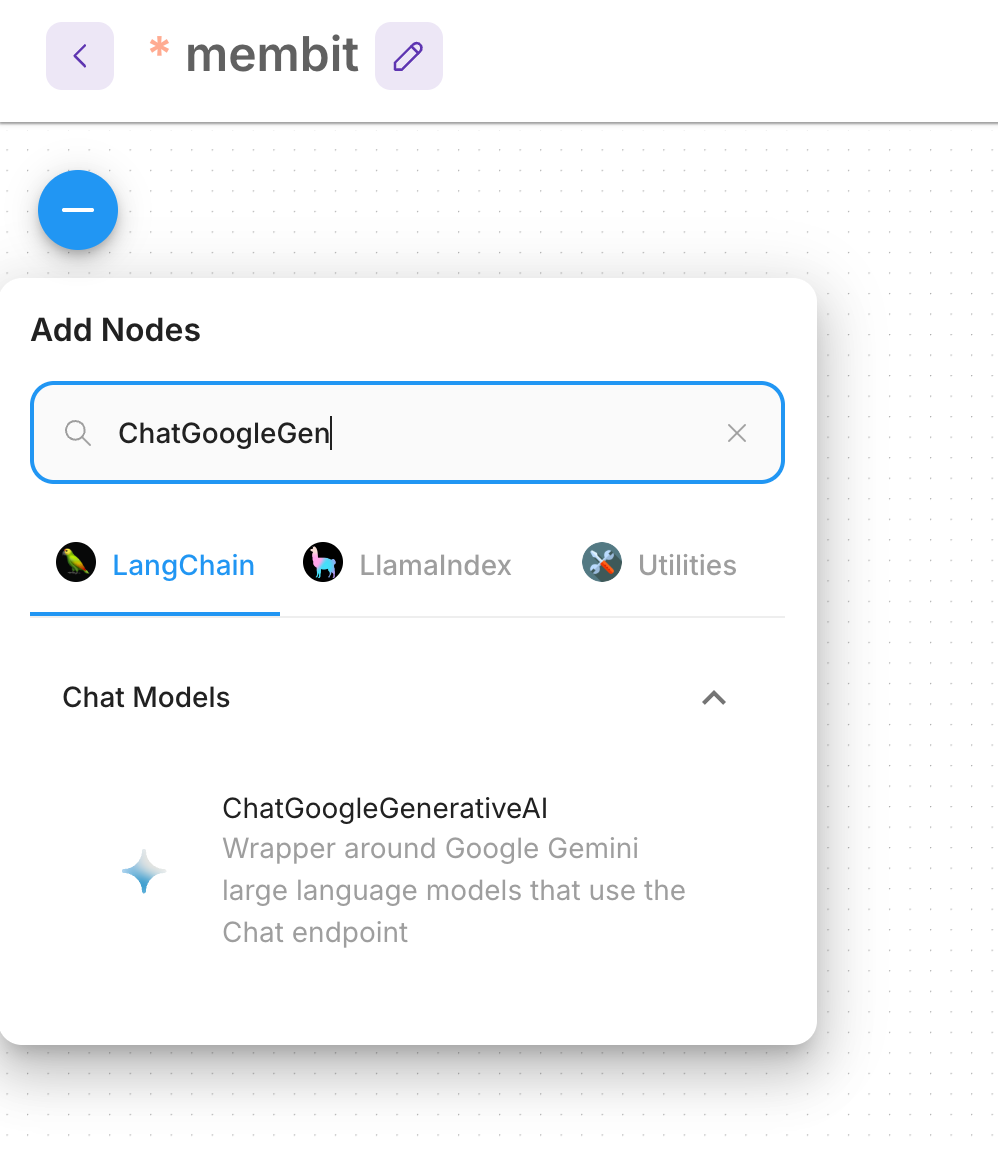 **Configuration:**
* Set up your Google AI Studio API key credential
* Select your preferred model (e.g., Gemini Pro)
**Configuration:**
* Set up your Google AI Studio API key credential
* Select your preferred model (e.g., Gemini Pro)
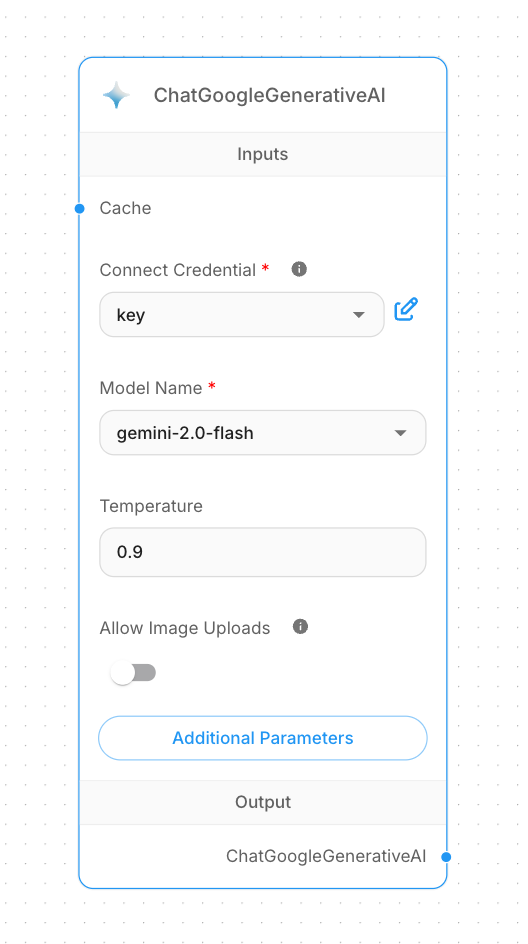 Search for and add a **Tool Agent** node to coordinate between the chat model and external tools.
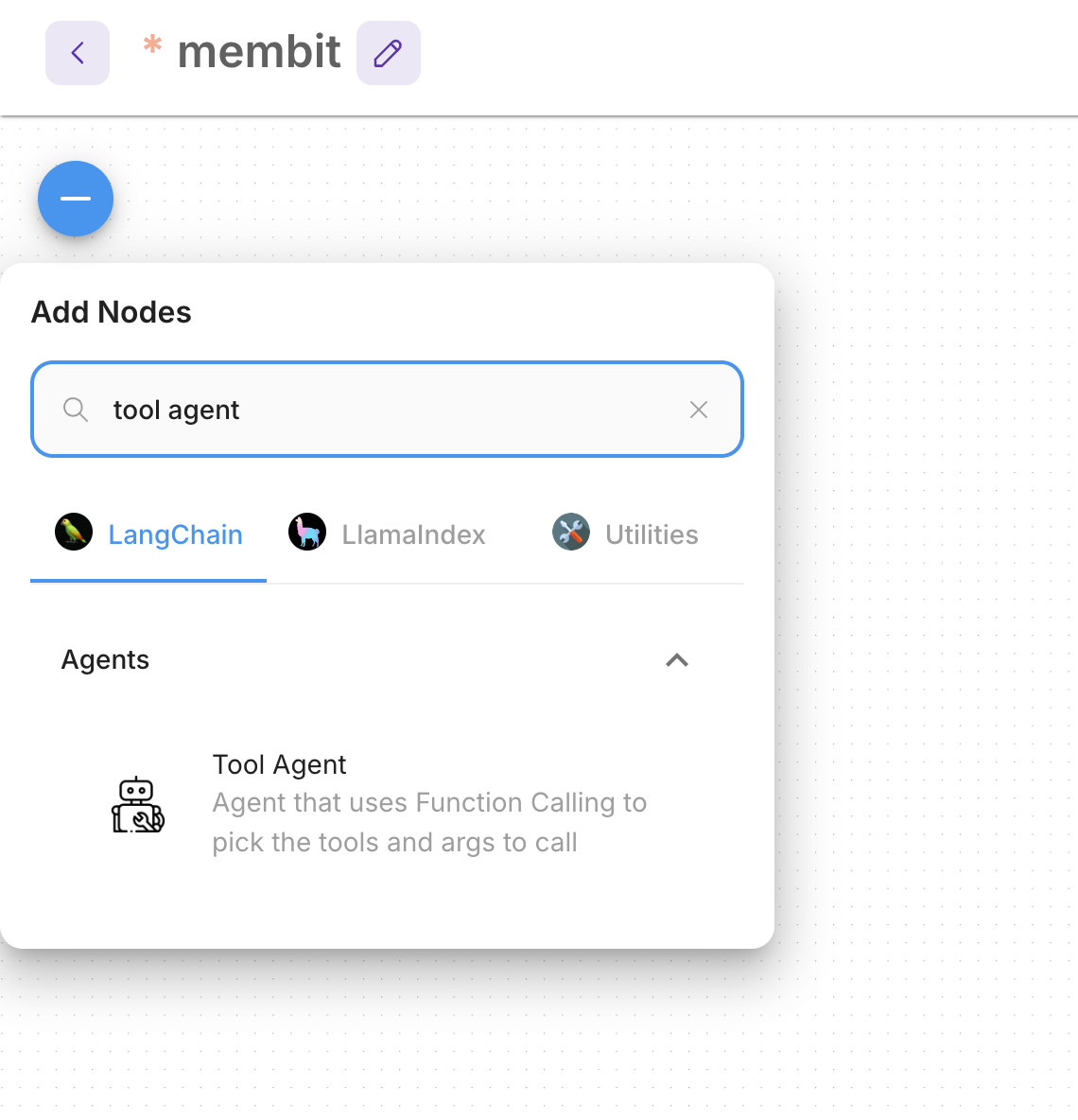 The Tool Agent acts as the orchestrator, managing how your chat model interacts with external tools like Membit.
Search for and add a **Buffer Memory** node to maintain conversation context.
The Tool Agent acts as the orchestrator, managing how your chat model interacts with external tools like Membit.
Search for and add a **Buffer Memory** node to maintain conversation context.
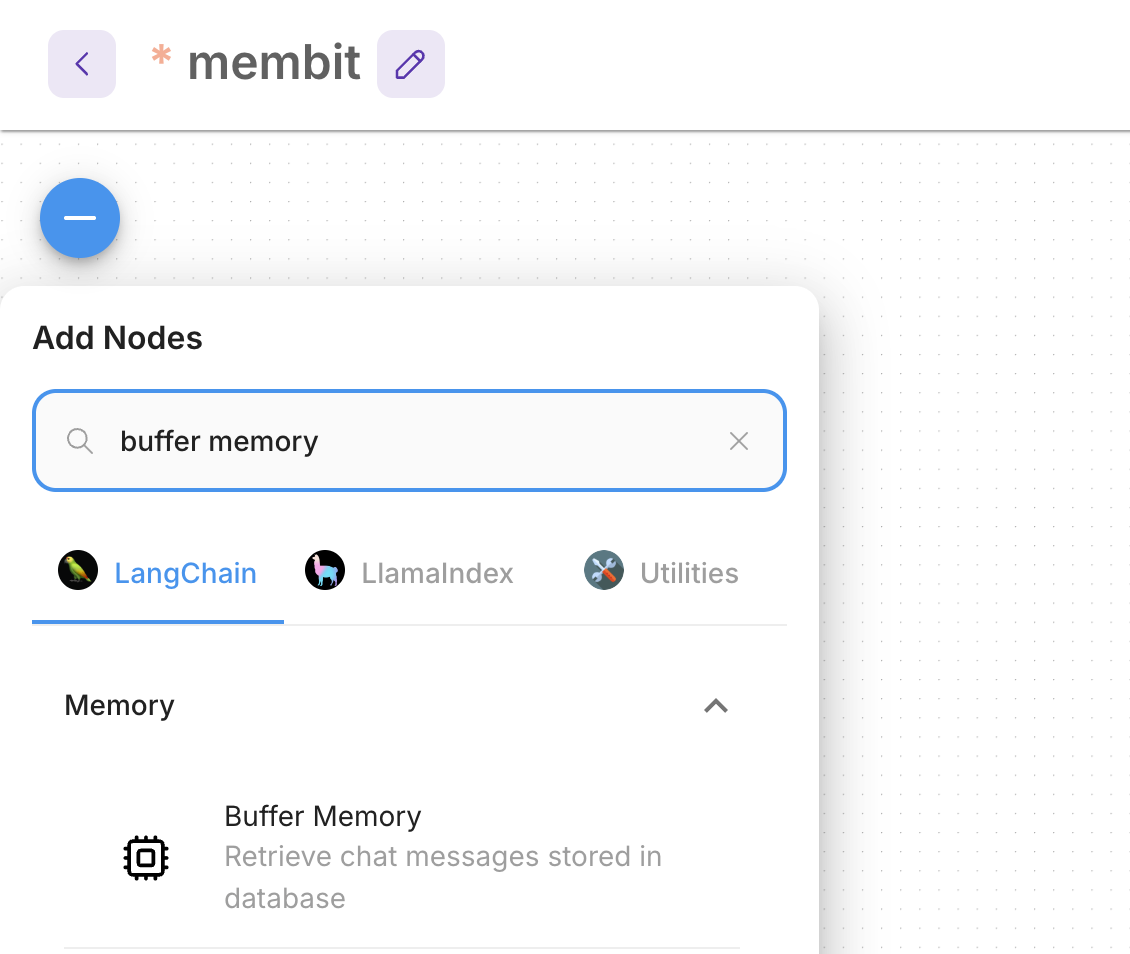 Connect all the nodes to create a functioning chatflow:
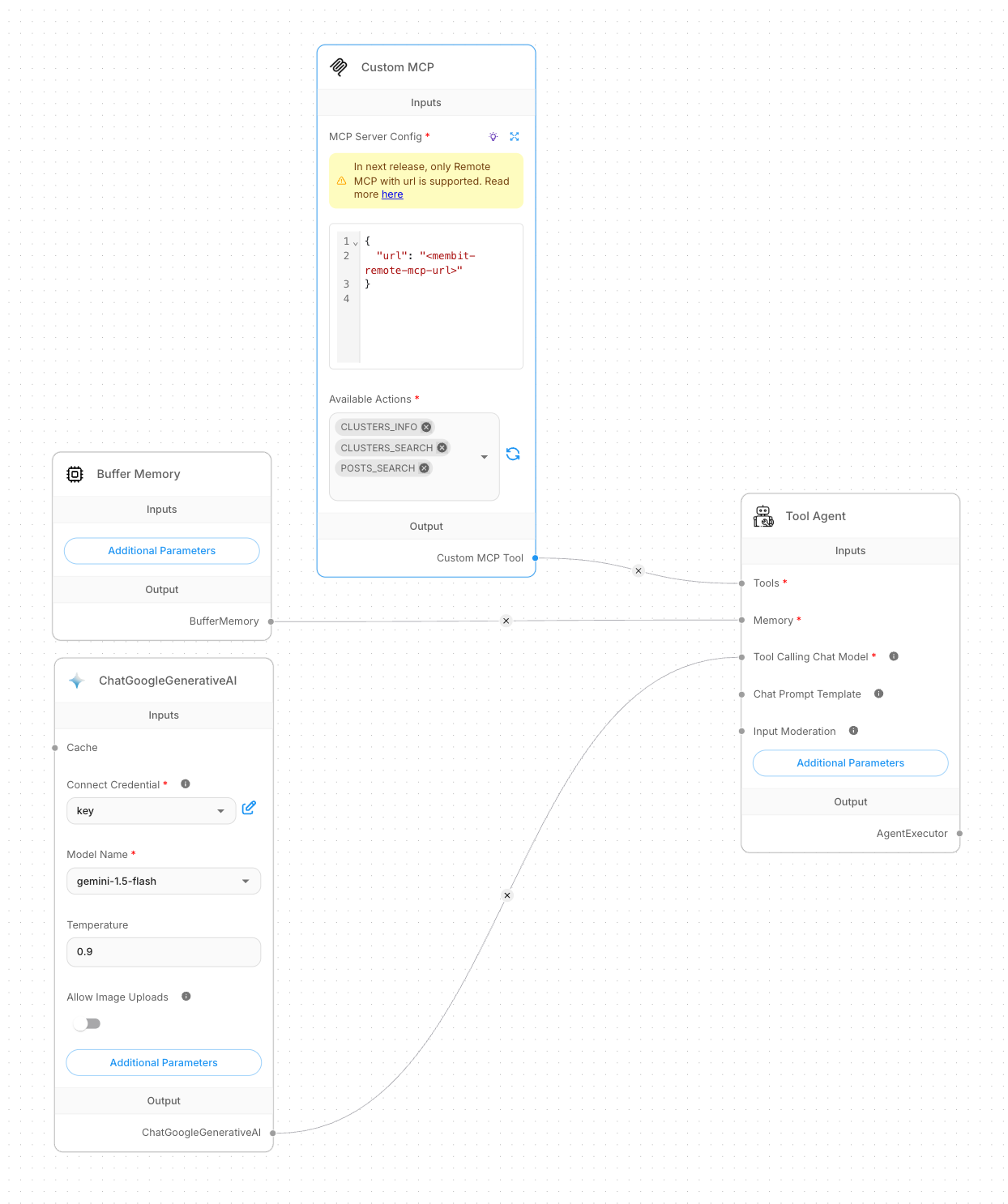 **Connection Pattern:**
* **Custom MCP** → **Tools** (Tool Agent)
* **ChatGoogleGenerativeAI** → **Tool Calling Chat Model** (Tool Agent)
* **Buffer Memory** → **Memory** (Tool Agent)
The visual connections show the data flow - the Tool Agent receives tools from Custom MCP, uses the chat model for responses, and maintains memory for context.
Once all nodes are connected, test your chatflow by starting a conversation.
**Connection Pattern:**
* **Custom MCP** → **Tools** (Tool Agent)
* **ChatGoogleGenerativeAI** → **Tool Calling Chat Model** (Tool Agent)
* **Buffer Memory** → **Memory** (Tool Agent)
The visual connections show the data flow - the Tool Agent receives tools from Custom MCP, uses the chat model for responses, and maintains memory for context.
Once all nodes are connected, test your chatflow by starting a conversation.
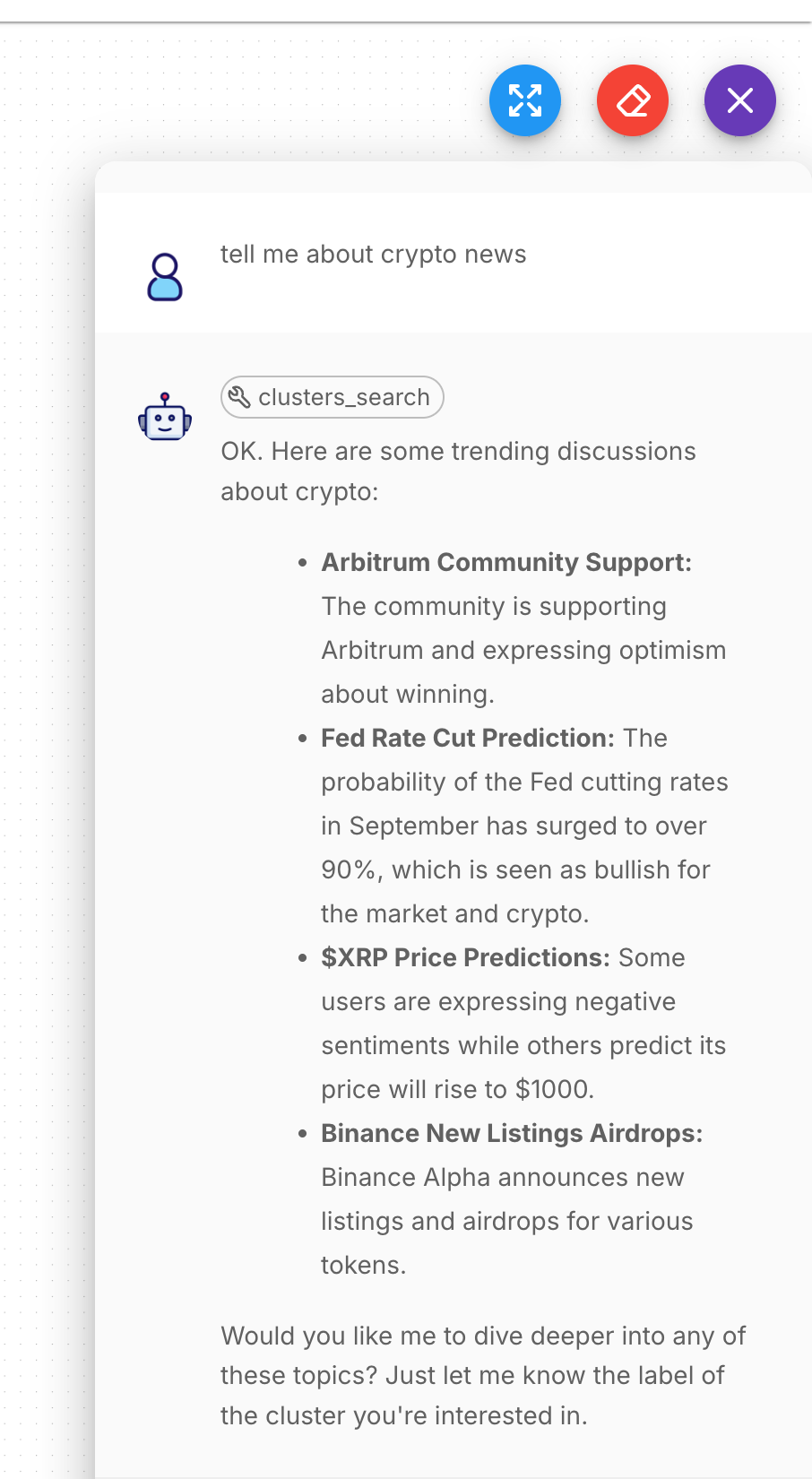 Try asking questions like "What's trending in AI today?" or "Tell me about recent crypto news" to see Membit's real-time context in action.
## Troubleshooting
**Problem**: Cannot configure or connect Custom MCP node
**Solutions**:
Verify the JSON configuration syntax is valid (no trailing commas, proper quotes)
Ensure the URL is exactly `https://mcp.membit.ai/mcp`
Check that the `MEMBIT_API_KEY` variable is properly set in Flowise
Try clicking the refresh button after configuration to load available actions
Restart Flowise after making configuration changes
**Problem**: API key variable not recognized in Flowise
**Solutions**:
Create a `MEMBIT_API_KEY` variable in Flowise's environment settings
Ensure the variable syntax in JSON uses `{{$vars.MEMBIT_API_KEY}}`
Verify there are no extra spaces or characters in the variable name
Check that your Membit API key is active and valid
Try restarting Flowise completely after setting environment variables
**Problem**: Tool Agent doesn't connect to Custom MCP properly
**Solutions**:
Ensure Custom MCP is connected to the "Tools" input of Tool Agent
Verify ChatGoogleGenerativeAI is connected to "Tool Calling Chat Model" input
Check that Buffer Memory is connected to "Memory" input
Confirm all connection lines are properly established and visible
Try disconnecting and reconnecting nodes in the correct sequence
**Problem**: AI responses don't include real-time context from Membit
**Solutions**:
Verify the Google AI Studio API key is correctly configured
Ensure the chat model supports function calling (Gemini Pro recommended)
Make prompts more explicit: "Use available tools to search for current information about..."
Check that the Custom MCP actions are properly loaded and selected
Test with topics that are likely to have recent social media activity
**Problem**: Chatflow fails to execute or times out
**Solutions**:
Check all required inputs are connected and configured
Verify internet connectivity and firewall settings
Ensure your Google AI Studio API key has sufficient quota
Review Flowise logs for specific error messages
Try testing individual components before connecting the full flow
Try asking questions like "What's trending in AI today?" or "Tell me about recent crypto news" to see Membit's real-time context in action.
## Troubleshooting
**Problem**: Cannot configure or connect Custom MCP node
**Solutions**:
Verify the JSON configuration syntax is valid (no trailing commas, proper quotes)
Ensure the URL is exactly `https://mcp.membit.ai/mcp`
Check that the `MEMBIT_API_KEY` variable is properly set in Flowise
Try clicking the refresh button after configuration to load available actions
Restart Flowise after making configuration changes
**Problem**: API key variable not recognized in Flowise
**Solutions**:
Create a `MEMBIT_API_KEY` variable in Flowise's environment settings
Ensure the variable syntax in JSON uses `{{$vars.MEMBIT_API_KEY}}`
Verify there are no extra spaces or characters in the variable name
Check that your Membit API key is active and valid
Try restarting Flowise completely after setting environment variables
**Problem**: Tool Agent doesn't connect to Custom MCP properly
**Solutions**:
Ensure Custom MCP is connected to the "Tools" input of Tool Agent
Verify ChatGoogleGenerativeAI is connected to "Tool Calling Chat Model" input
Check that Buffer Memory is connected to "Memory" input
Confirm all connection lines are properly established and visible
Try disconnecting and reconnecting nodes in the correct sequence
**Problem**: AI responses don't include real-time context from Membit
**Solutions**:
Verify the Google AI Studio API key is correctly configured
Ensure the chat model supports function calling (Gemini Pro recommended)
Make prompts more explicit: "Use available tools to search for current information about..."
Check that the Custom MCP actions are properly loaded and selected
Test with topics that are likely to have recent social media activity
**Problem**: Chatflow fails to execute or times out
**Solutions**:
Check all required inputs are connected and configured
Verify internet connectivity and firewall settings
Ensure your Google AI Studio API key has sufficient quota
Review Flowise logs for specific error messages
Try testing individual components before connecting the full flow