> ## Documentation Index
> Fetch the complete documentation index at: https://docs.membit.ai/llms.txt
> Use this file to discover all available pages before exploring further.
# Cursor
> Integrate real-time context to your Cursor AI Code Editor via Membit MCP.
 Cursor is an AI-powered code editor that enhances your development workflow with intelligent assistance. By integrating Membit with Cursor, you can access real-time social context directly within your coding environment, enabling your AI assistant to provide up-to-date insights about trending topics, current discussions, and breaking news while you work.
## Prerequisites
Before you begin, make sure you have:
* Cursor editor installed ([download here](https://cursor.com))
* A Membit account with an API key [get your API key](/access-and-auth)
* Basic familiarity with Cursor's interface and AI features
## Setting Up Membit MCP Integration
Follow these steps to integrate Membit with your Cursor environment:
Open Cursor and navigate to the settings by clicking on the settings icon or using the keyboard shortcut.
Cursor is an AI-powered code editor that enhances your development workflow with intelligent assistance. By integrating Membit with Cursor, you can access real-time social context directly within your coding environment, enabling your AI assistant to provide up-to-date insights about trending topics, current discussions, and breaking news while you work.
## Prerequisites
Before you begin, make sure you have:
* Cursor editor installed ([download here](https://cursor.com))
* A Membit account with an API key [get your API key](/access-and-auth)
* Basic familiarity with Cursor's interface and AI features
## Setting Up Membit MCP Integration
Follow these steps to integrate Membit with your Cursor environment:
Open Cursor and navigate to the settings by clicking on the settings icon or using the keyboard shortcut.
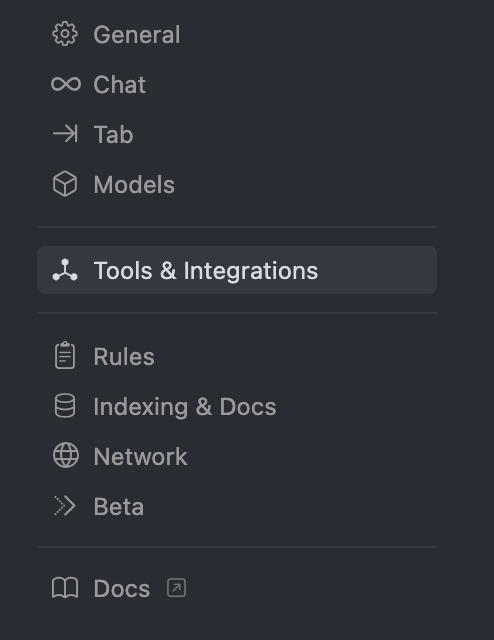 In the settings menu, locate and click on **Tools & Integrations** to access external service configurations.
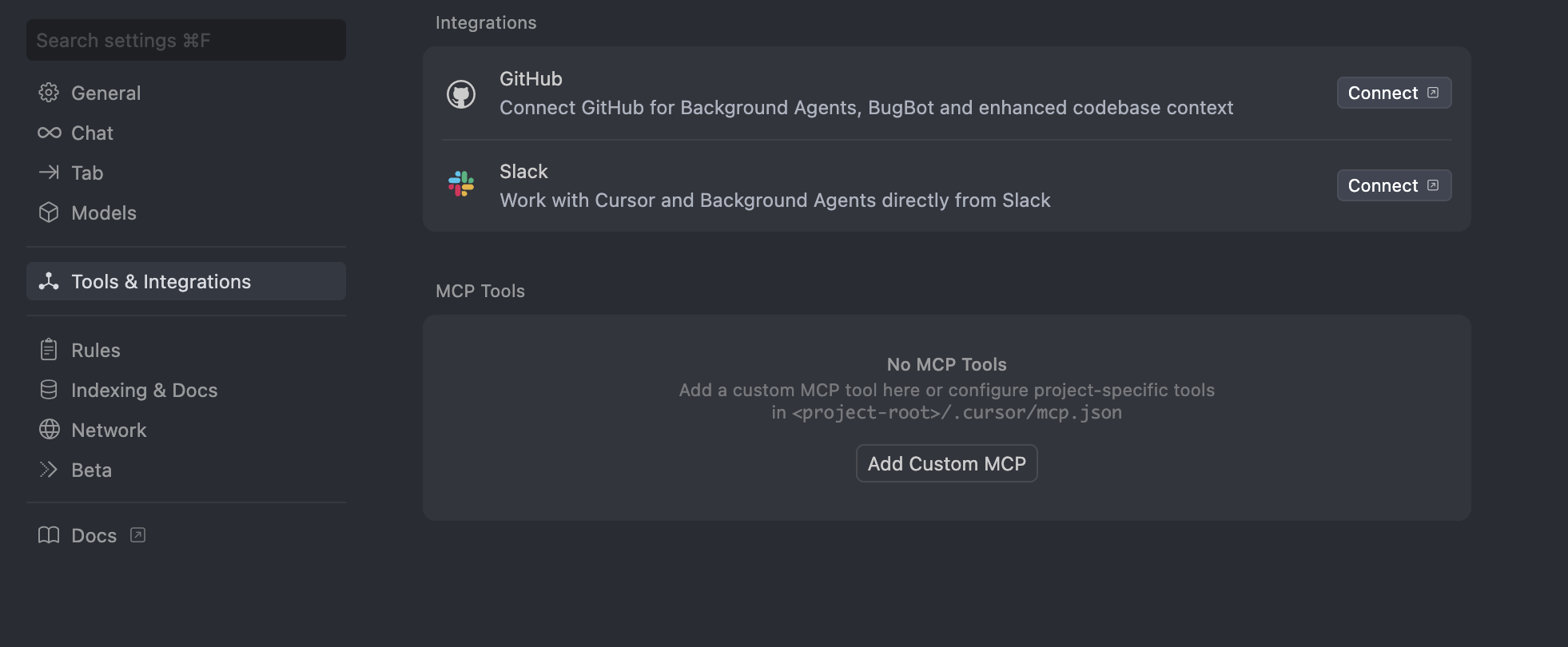 The Tools & Integrations section allows you to connect external services and tools to enhance Cursor's capabilities.
Click **Add Custom MCP** to create a new Model Context Protocol integration.
Paste the following Membit remote MCP configuration into the configuration field:
```json theme={null}
{
"mcpServers": {
"membit-mcp": {
"url": "https://mcp.membit.ai/mcp",
"headers": {
"X-Membit-Api-Key":
}
}
}
}
```
Replace `` with your actual Membit API key. Keep this credential secure and don't share it with unauthorized users.
**Configuration Details:**
* **Server Name**: `membit-remote-mcp`
* **Command**: Uses npx to run the remote MCP client
* **Environment**: Empty object for default environment variables
After saving the configuration, turn on the **Membit Remote MCP** tool to activate the integration.
The Tools & Integrations section allows you to connect external services and tools to enhance Cursor's capabilities.
Click **Add Custom MCP** to create a new Model Context Protocol integration.
Paste the following Membit remote MCP configuration into the configuration field:
```json theme={null}
{
"mcpServers": {
"membit-mcp": {
"url": "https://mcp.membit.ai/mcp",
"headers": {
"X-Membit-Api-Key":
}
}
}
}
```
Replace `` with your actual Membit API key. Keep this credential secure and don't share it with unauthorized users.
**Configuration Details:**
* **Server Name**: `membit-remote-mcp`
* **Command**: Uses npx to run the remote MCP client
* **Environment**: Empty object for default environment variables
After saving the configuration, turn on the **Membit Remote MCP** tool to activate the integration.
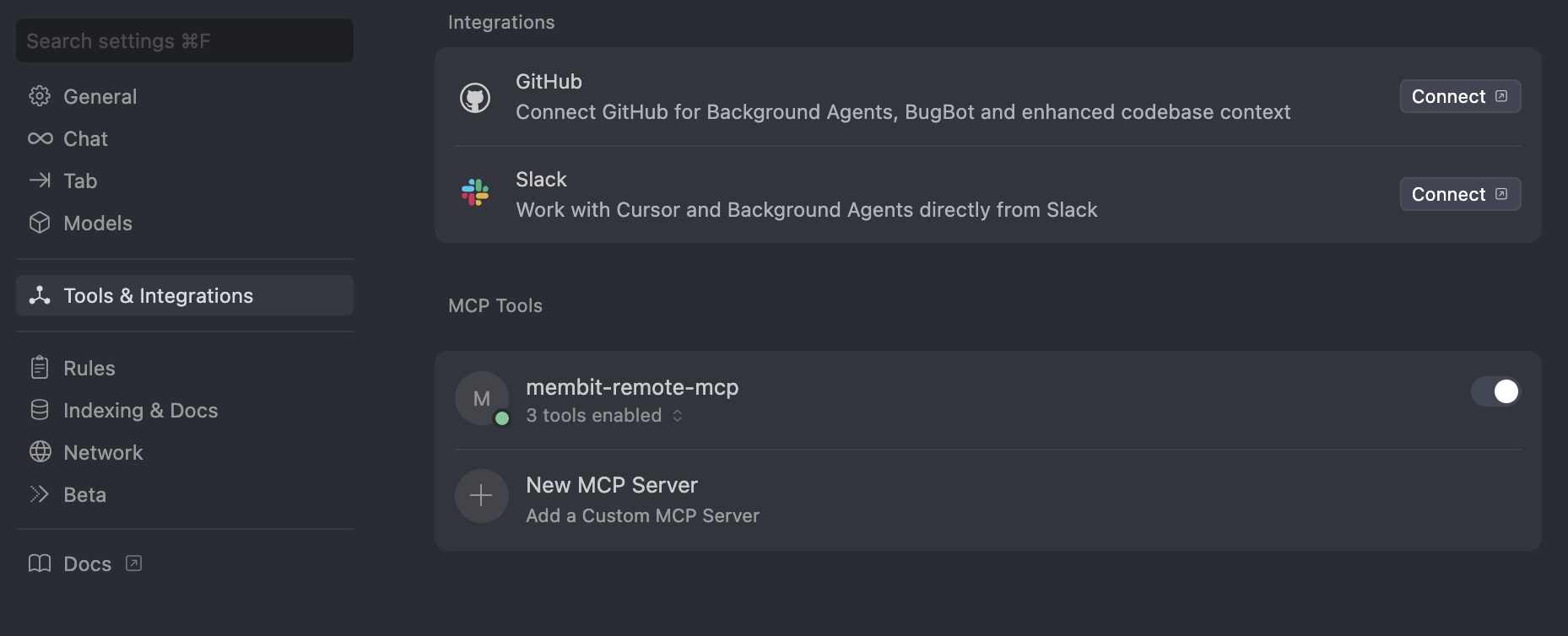 Once enabled, Cursor's AI will have access to Membit's real-time context capabilities when processing your requests.
## Using Membit with Cursor
Now that the integration is set up, you can start using Membit's real-time context in your development workflow:
Open Cursor's chat interface and begin a conversation with the AI assistant.
Try asking questions that benefit from real-time context:
* "What are the latest trends in web development?"
* "Tell me about recent discussions in the AI community"
* "What's currently trending in cryptocurrency?"
* "Give me insights on the latest tech news"
When Cursor asks for permission to run tools, click **Run Tool** to allow
access to Membit's real-time data. Cursor requests permission every time it
uses external tools. You can bypass these permission prompts by adjusting the
tool permissions in Cursor settings if desired.
Once enabled, Cursor's AI will have access to Membit's real-time context capabilities when processing your requests.
## Using Membit with Cursor
Now that the integration is set up, you can start using Membit's real-time context in your development workflow:
Open Cursor's chat interface and begin a conversation with the AI assistant.
Try asking questions that benefit from real-time context:
* "What are the latest trends in web development?"
* "Tell me about recent discussions in the AI community"
* "What's currently trending in cryptocurrency?"
* "Give me insights on the latest tech news"
When Cursor asks for permission to run tools, click **Run Tool** to allow
access to Membit's real-time data. Cursor requests permission every time it
uses external tools. You can bypass these permission prompts by adjusting the
tool permissions in Cursor settings if desired.
 Your AI assistant will now provide responses enhanced with current, real-world context from Membit's data feed.
## Troubleshooting
**Problem**: Custom MCP configuration fails to load or save
**Solutions**:
Verify the JSON configuration syntax is valid (no trailing commas, proper quotes)
Ensure the server name `membit-mcp` is unique and not conflicting
Check that the URL is exactly `https://mcp.membit.ai/mcp`
Try restarting Cursor after configuration changes
Validate the JSON structure matches the required format exactly
**Problem**: Membit API key authentication is failing
**Solutions**:
Verify your API key is correctly placed in the headers configuration
Ensure the header name is exactly `X-Membit-Api-Key` (case-sensitive)
Check that there are no extra spaces or characters around the API key
Confirm your Membit API key is active and has sufficient credits
Try generating a new API key if the current one isn't working
**Problem**: Cursor keeps asking for permission to run tools
**Solutions**:
Click "Run Tool" when prompted to allow Membit access for that session
Go to Cursor settings → Tools & Integrations → adjust tool permissions
Enable "Auto-approve safe tools" if available in your Cursor version
Consider the security implications before disabling permission prompts
Use "Always allow" option when prompted if you trust the Membit integration
**Problem**: Cursor can't connect to Membit MCP server
**Solutions**:
Check your internet connection and firewall settings
Verify the Membit MCP server is operational (try accessing the URL in browser)
Ensure Cursor has network access permissions on your system
Try toggling the MCP integration off and on again
Check Cursor's console/logs for specific error messages
**Problem**: Chat responses don't include real-time context
**Solutions**:
Make requests more explicit: "Use Membit to find current information about..."
Verify the Membit Remote MCP tool is enabled and active
Check that your questions relate to topics likely to have recent social media discussion
Try asking about trending topics that would benefit from real-time context
Ensure you're allowing tool usage when Cursor requests permission
Your AI assistant will now provide responses enhanced with current, real-world context from Membit's data feed.
## Troubleshooting
**Problem**: Custom MCP configuration fails to load or save
**Solutions**:
Verify the JSON configuration syntax is valid (no trailing commas, proper quotes)
Ensure the server name `membit-mcp` is unique and not conflicting
Check that the URL is exactly `https://mcp.membit.ai/mcp`
Try restarting Cursor after configuration changes
Validate the JSON structure matches the required format exactly
**Problem**: Membit API key authentication is failing
**Solutions**:
Verify your API key is correctly placed in the headers configuration
Ensure the header name is exactly `X-Membit-Api-Key` (case-sensitive)
Check that there are no extra spaces or characters around the API key
Confirm your Membit API key is active and has sufficient credits
Try generating a new API key if the current one isn't working
**Problem**: Cursor keeps asking for permission to run tools
**Solutions**:
Click "Run Tool" when prompted to allow Membit access for that session
Go to Cursor settings → Tools & Integrations → adjust tool permissions
Enable "Auto-approve safe tools" if available in your Cursor version
Consider the security implications before disabling permission prompts
Use "Always allow" option when prompted if you trust the Membit integration
**Problem**: Cursor can't connect to Membit MCP server
**Solutions**:
Check your internet connection and firewall settings
Verify the Membit MCP server is operational (try accessing the URL in browser)
Ensure Cursor has network access permissions on your system
Try toggling the MCP integration off and on again
Check Cursor's console/logs for specific error messages
**Problem**: Chat responses don't include real-time context
**Solutions**:
Make requests more explicit: "Use Membit to find current information about..."
Verify the Membit Remote MCP tool is enabled and active
Check that your questions relate to topics likely to have recent social media discussion
Try asking about trending topics that would benefit from real-time context
Ensure you're allowing tool usage when Cursor requests permission